Guide
How to set up online ordering for your restaurant
Setting up your own online ordering is more approachable than most owners expect, and it changes the economics of your restaurant: customers order direct from you instead of through a marketplace that takes 15% to 30% and keeps your customer. This is the full, step-by-step walkthrough, from menu and photos to payments, delivery, and getting people to actually use it.
By Town · Reviewed July 2026 · ~12 min read
Why set up your own online ordering at all
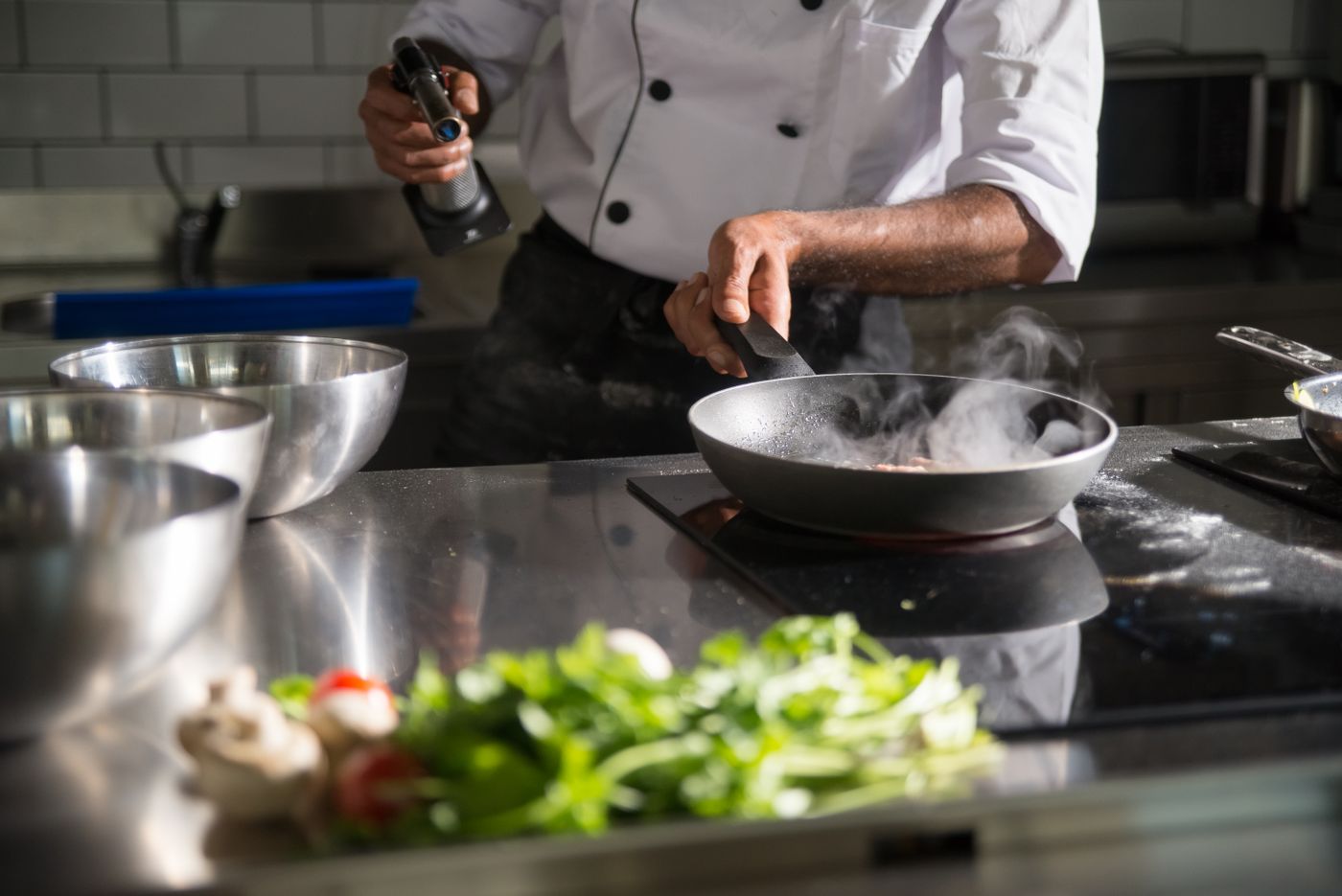
Before the how, it is worth being clear on the why, because it changes every decision that follows. When a customer orders through DoorDash or Uber Eats, three things happen: the marketplace takes a large cut, the marketplace keeps the customer, and you have no way to bring that guest back on your own terms. When the same customer orders through your own site, you keep the margin, you keep the relationship, and you can market to them directly. Your own online ordering is the single most valuable system an independent restaurant can turn on.
Before you start: what you will need
Gather these and the setup goes quickly:
- Your full menu with current prices, including sizes, add-ons, and modifiers.
- Photos of your best-selling items (phone photos in good light are fine to start).
- Your hours, including any different hours for pickup versus delivery.
- A payment processor or the willingness to use the one your platform provides.
- Your delivery radius and any delivery fee or minimum you want to set.
Step 1: Get your own ordering site (not a marketplace listing)
Start with a branded site you actually own, on your own domain or subdomain, not a page inside someone else's app. This is the foundation, because it is where the customer relationship lives. With a platform like Town this comes with the platform, so you skip page builders and developers entirely, but the principle holds no matter how you do it: own the storefront.
Step 2: Build your menu once, use it everywhere
Recreate your menu digitally with clear categories (Starters, Mains, Sides, Drinks), then add each item with a description, price, and photo. Set up modifiers for the choices customers make: size, protein, spice level, add-ons, and remove-options. A few tips that meaningfully lift orders:
- Photograph your top ten items. Items with photos consistently outsell items without.
- Write short, appetizing descriptions, and mention what makes a dish special.
- Group smartly so the highest-margin items are easy to find near the top.
- Make sure the same menu powers your website, ordering, and delivery, so you edit once and it updates everywhere. Chasing prices across three systems is how mistakes happen.
Step 3: Turn on payments
Connect a payment processor so guests can pay online for pickup, delivery, and catering. The thing to watch here is the fee model: look for a flat, low per-order fee rather than a percentage that quietly rivals the delivery apps. Enable card payments, digital wallets like Apple Pay and Google Pay, and decide whether you want to prompt for tips at checkout.
Step 4: Configure pickup, delivery, and catering
Set your prep times so customers get realistic pickup windows, and turn on scheduled ordering so guests can order ahead for later. For delivery, set your radius, any delivery fee, and an order minimum if you want one. For catering, a simple inquiry form on your site captures big orders you would otherwise miss.
Step 5: Add delivery without the commission
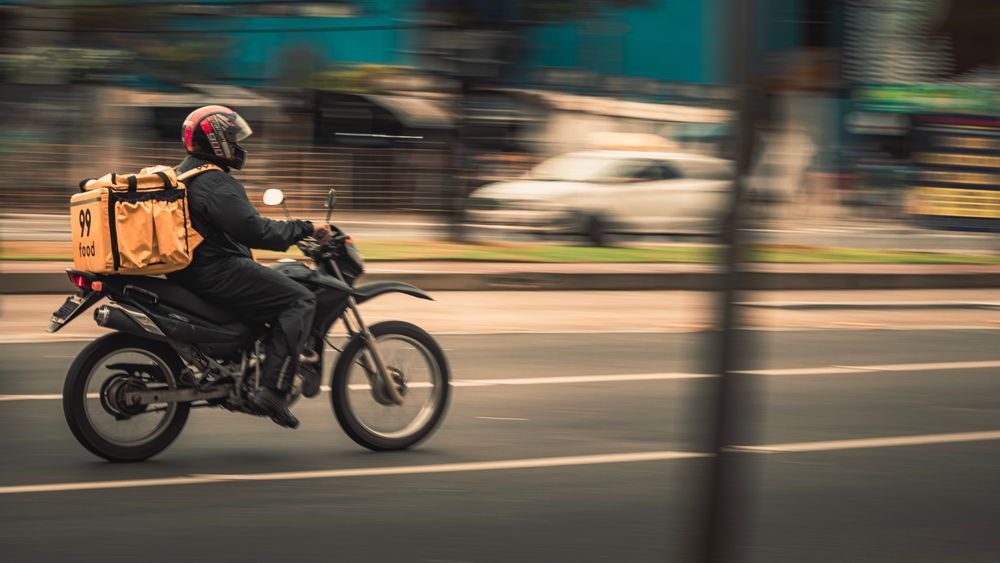
You do not need to be on a marketplace to offer delivery. With Town, the order happens on your own site and Town dispatches the same DoorDash Drive and Uber Direct drivers, up to about 10 miles out. Same driver at the door, same convenience for the guest, but no 15% to 30% marketplace cut and you keep the customer.
Step 6: Connect your Google Business Profile and listings
Most local orders start with a Google search or map. Make sure your Google Business Profile links to your own ordering, and that your name, address, phone, hours, and menu are consistent everywhere online. Keeping your info synced across the major listing platforms is what makes you show up correctly and rank locally. Local SEO for restaurants goes deep on this.
Step 7: Actually drive orders to it
A storefront no one visits does not help. Point every channel at your own ordering:
- Set your Google, Instagram, and Facebook "order" buttons to your site.
- Put a QR code on tables, receipts, and to-go bags that opens your ordering.
- Email and text past customers a reason to order direct.
- Post regularly, or let AI post for you, with a link back to your ordering.
Common mistakes to avoid
- No photos. The fastest way to lose online orders is a wall of text.
- Prices that do not match in-house. Inconsistency erodes trust.
- Sending everyone to the marketplace. Use apps for discovery, own the repeat.
- Hiding the order button. It should be the most obvious thing on your site.
How long does this take?
Done yourself, a first version can take an afternoon to a weekend depending on menu size. Town gives you the builder, your menu, ordering, and site in one place, with Alfredo AI and real support to help you set it up. Online Ordering or Start selling to get started.
Key takeaways
- Own the storefront: set up ordering on your own site, not a marketplace listing.
- Photos and clear modifiers are the biggest levers on online order conversion.
- Choose a flat, low per-order fee over a percentage that rivals the apps.
- You can offer delivery on the same DoorDash and Uber drivers with no marketplace commission.
- Drive orders with your Google profile, QR codes, social, and email, and keep listings consistent.
Frequently asked questions
How long does it take to set up online ordering?
Do I need a website first?
Do I need my own payment processor?
Can I offer delivery without joining DoorDash as a marketplace?
How much should online ordering cost?
What is the fastest way to get customers to use it?
Set up online ordering the easy way
Set up your site, menu and ordering, with help if you want it.