

- Help center
- Locations & settings
- Change your opening hours
Change your opening hours
Set your weekly hours, overnight and split shifts, and the friendly hours text on your site.
Where to find itSettings › Locations › ⋯ Edit › Opening Hours
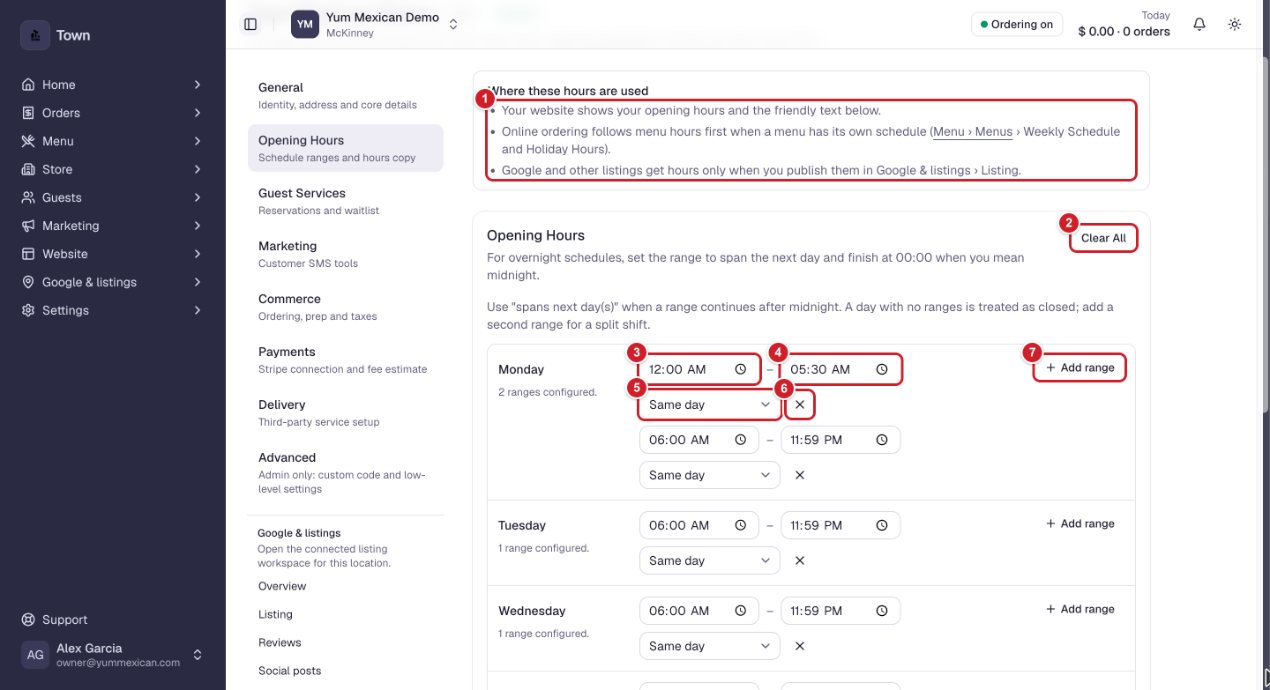
- 1Where these hours are used Your website shows these hours. Online ordering follows a menu’s own hours first, if it has them. Google gets hours only when you publish them in Google & listings › Listing.
- 2Clear All Clears every day.
- 3Opens The opening time.
- 4Closes The closing time.
- 5Same day Or Spans next day, for ranges that go past midnight.
- 6Remove Removes that range.
- 7Add range Adds another range, for a split shift.
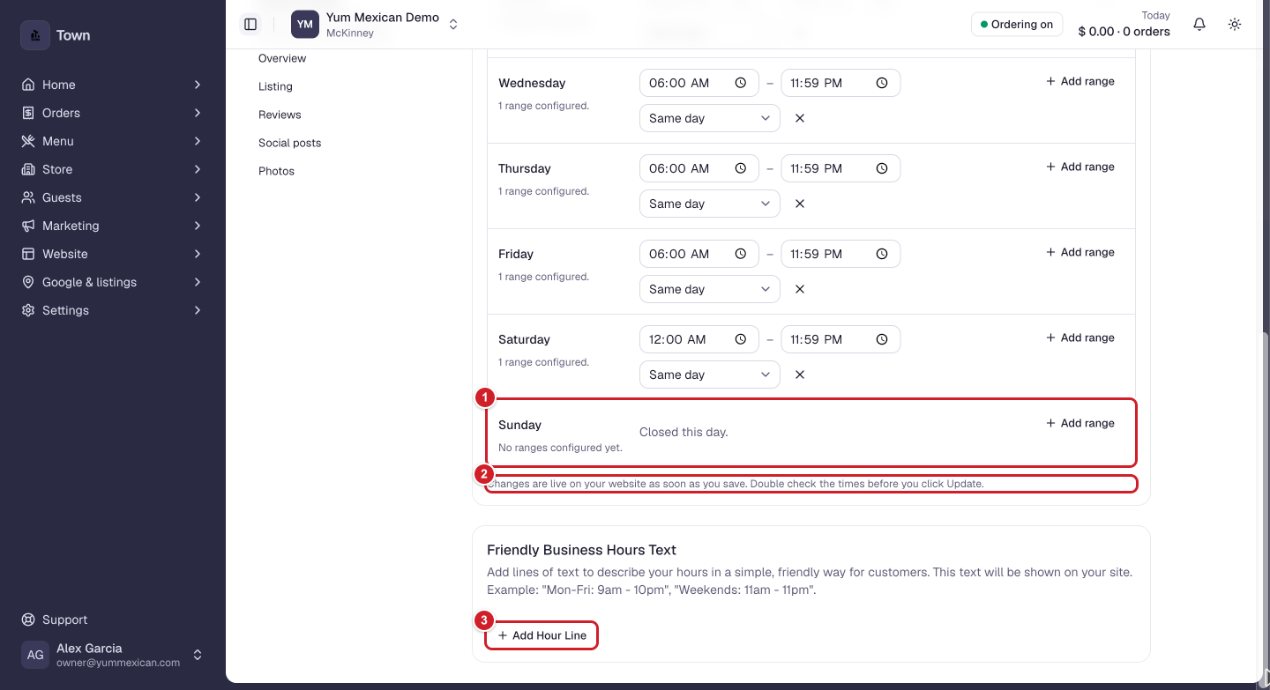
- 1A closed day A day with no ranges is closed.
- 2Live right away Changes are live as soon as you save. Double check the times before you click Update.
- 3Add Hour Line Friendly hours text for your website, like "Mon-Fri: 9am - 10pm".
Tip
Closing at midnight? Set the range to span the next day and end at 00:00.
Menus can have their own hours too. See Create a menu and set its hours.
Still stuck?
Ask Alfredo inside your Town admin, call (469) 249-2795 or email support@town.club. Real people answer 24/7.