
- Help center
- Google & listings
- Create social posts with AI
Create social posts with AI
Let AI write posts from your best sellers, or write one yourself, for Google, Facebook, Instagram and more.
Where to find itGoogle & listings › Social
You can also open this page from Marketing › Social Media.
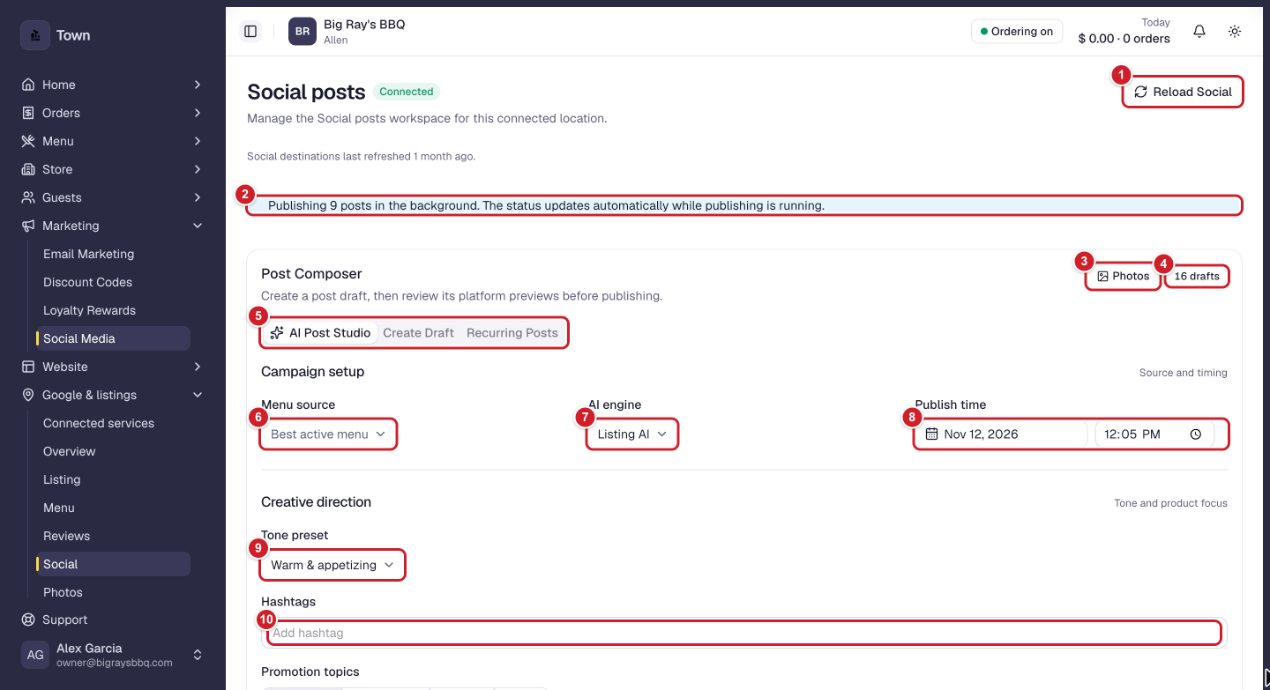
- 1Reload Social Pulls in the latest posts.
- 2Publishing Shows when posts are publishing in the background.
- 3Photos Opens your photo library.
- 4Drafts How many drafts are waiting.
- 5Post Composer tabs AI Post Studio, Create Draft or Recurring Posts.
- 6Menu source Which menu the AI writes about.
- 7AI engine The AI that writes the post.
- 8Publish time When it should go out.
- 9Tone preset Like Warm & appetizing.
- 10Hashtags Add your own hashtags.
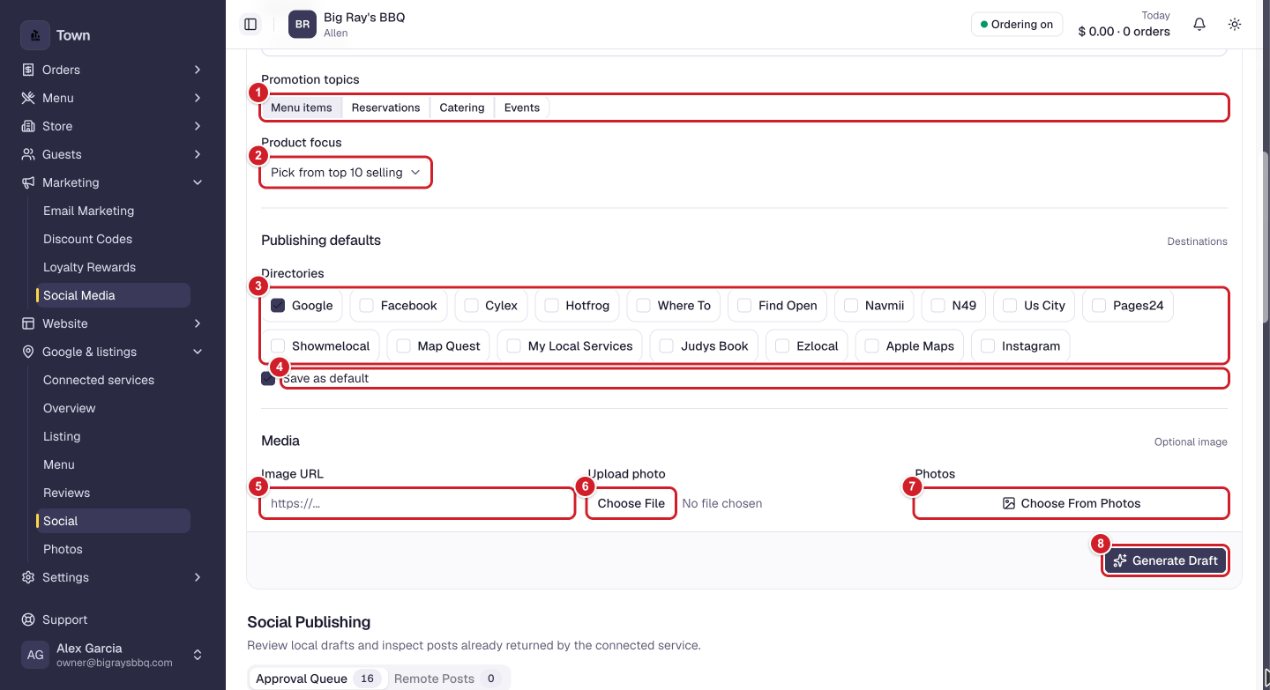
- 1Promotion topics Menu items, Reservations, Catering or Events.
- 2Product focus Like Pick from top 10 selling.
- 3Directories Where the post goes, like Google, Facebook and Instagram.
- 4Save as default Remembers these destinations.
- 5Image URL A link to a picture.
- 6Upload photo Or upload one.
- 7Choose From Photos Or pick from your library.
- 8Generate Draft Writes the post. It lands in your Approval Queue.
Write a post yourself
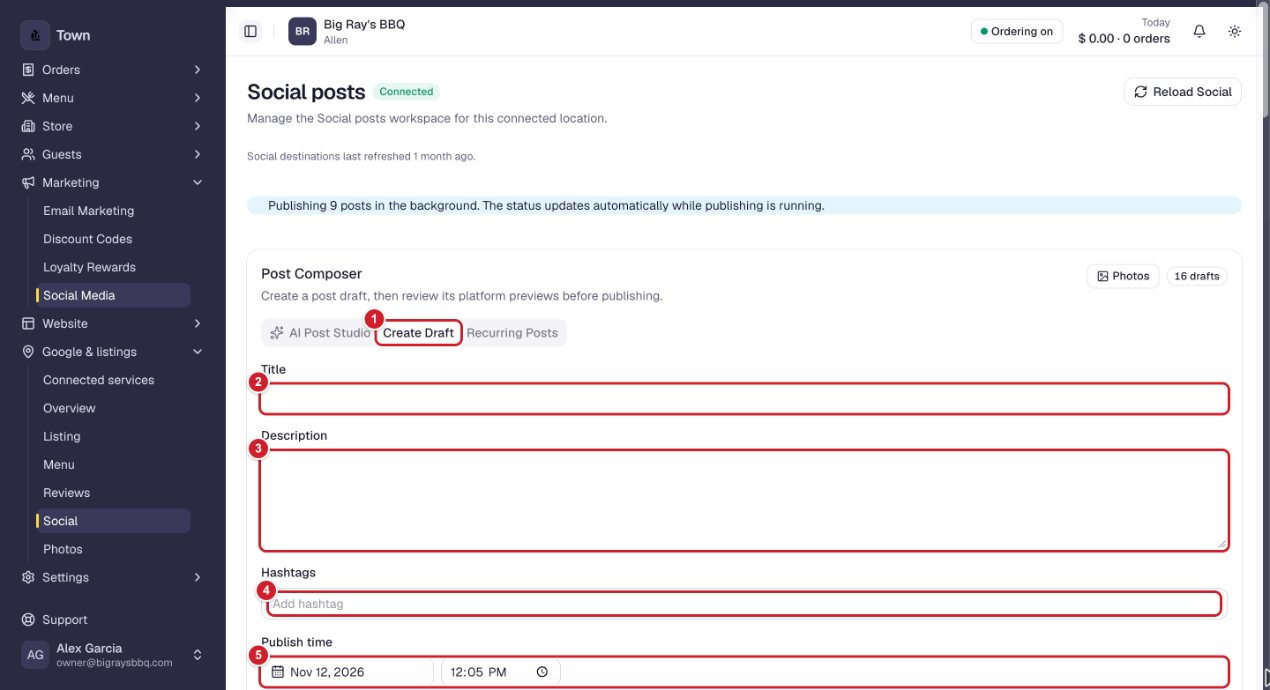
- 1Create Draft Write the post by hand.
- 2Title The headline.
- 3Description The post text.
- 4Hashtags Optional.
- 5Publish time When it goes out.
Below that, add a photo, choose the directories and click Save Draft.
Still stuck?
Ask Alfredo inside your Town admin, call (469) 249-2795 or email support@town.club. Real people answer 24/7.