

- Help center
- Email marketing
- Write an email by hand (templates and editor)
Write an email by hand (templates and editor)
Start from a template, then change the words, layout, images, colors and button.
Where to find itMarketing › Email Marketing › Emails › Choose a template
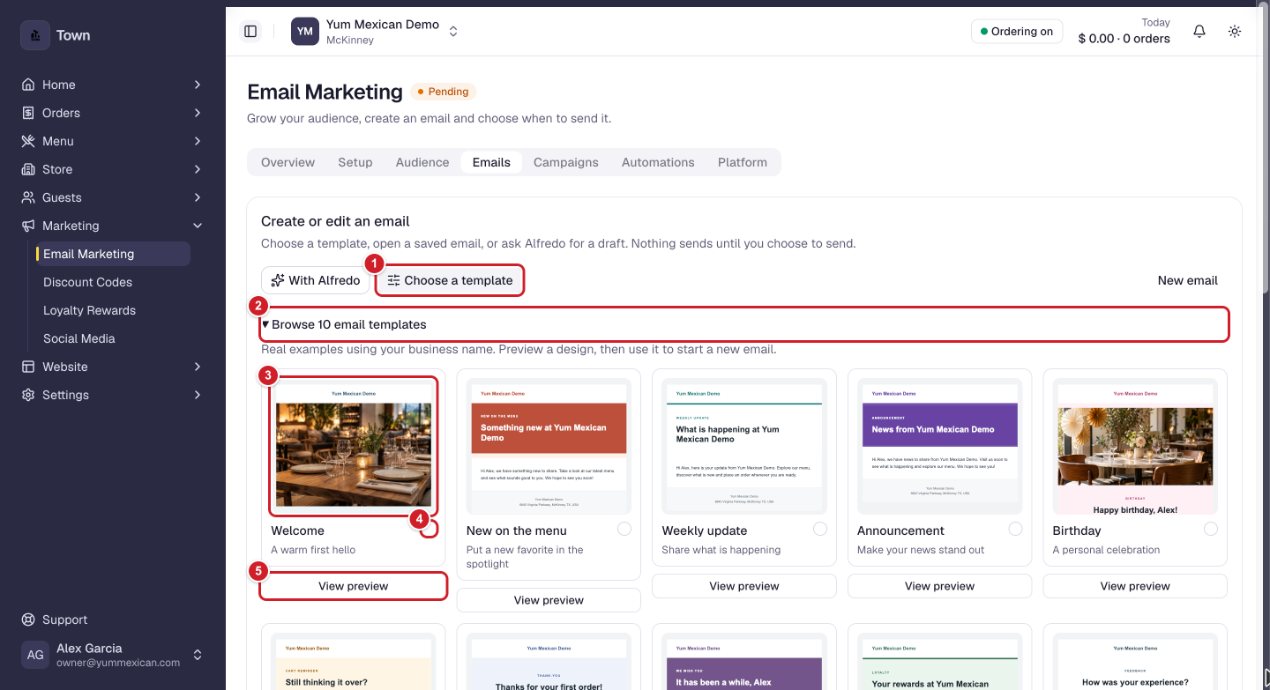
- 1Choose a template Opens the templates.
- 2Browse 10 email templates Real examples using your business name.
- 3Template Welcome, New on the menu, Weekly update, Announcement, Birthday, Cart reminder, Thank-you, We miss you, Loyalty and Feedback.
- 4Select Picks the template.
- 5View preview Shows the full design first.
Edit the email
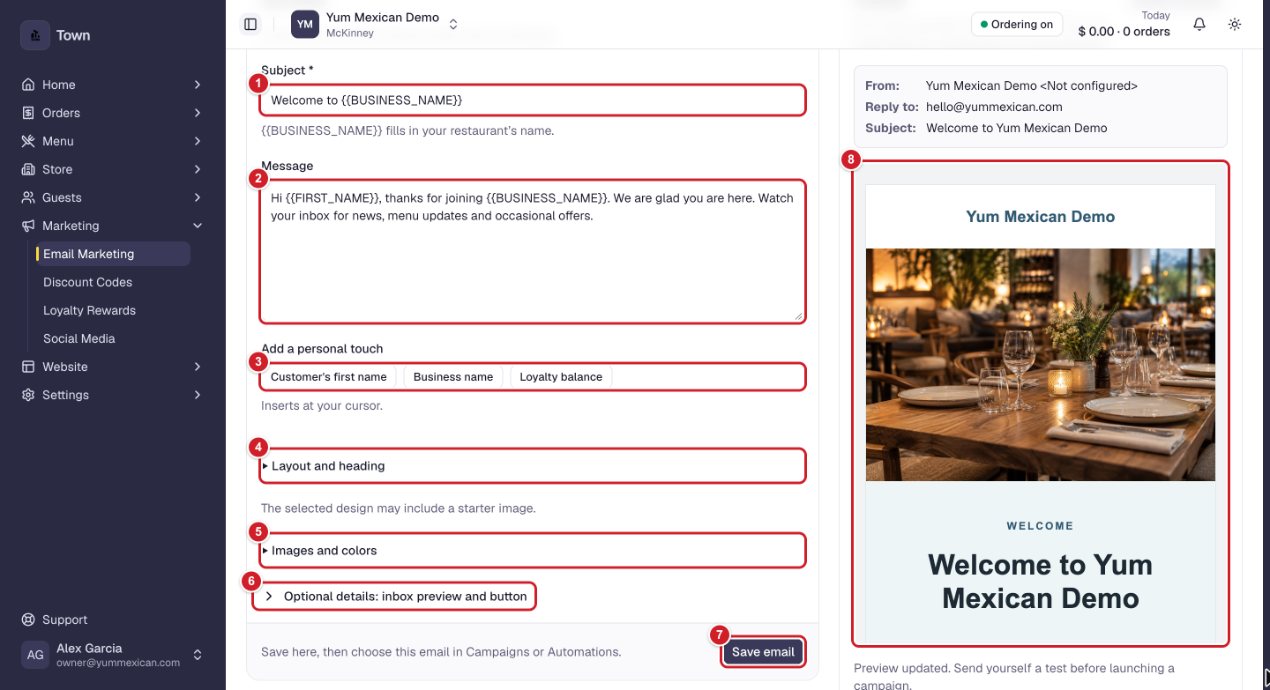
- 1Subject {{BUSINESS_NAME}} fills in your restaurant’s name.
- 2Message The body of your email.
- 3Add a personal touch Insert Customer’s first name, Business name or Loyalty balance at your cursor.
- 4Layout and heading Opens layout options.
- 5Images and colors Opens images and colors.
- 6Optional details Inbox preview text and a button.
- 7Save email Saves it, ready for Campaigns or Automations.
- 8Preview Updates as you type.
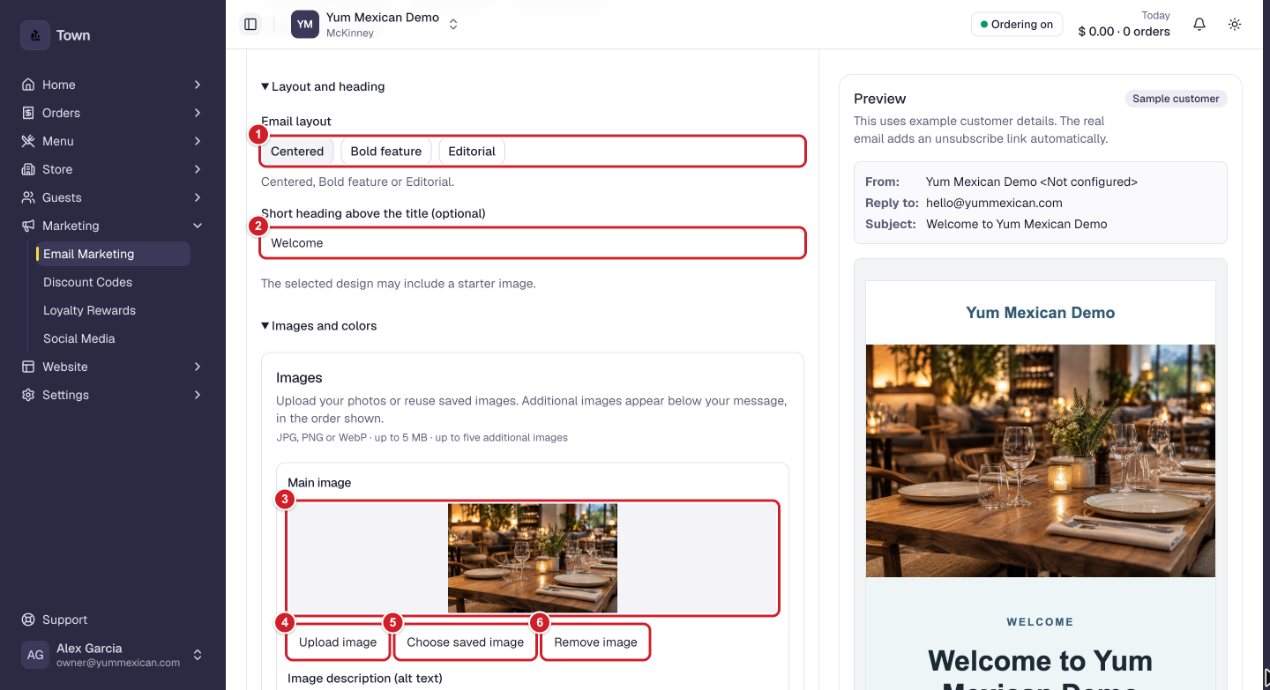
- 1Email layout Centered, Bold feature or Editorial.
- 2Short heading Optional, above the title.
- 3Main image The big picture at the top.
- 4Upload image JPG, PNG or WebP, up to 5 MB.
- 5Choose saved image Reuse a picture you uploaded before.
- 6Remove image Takes it off.
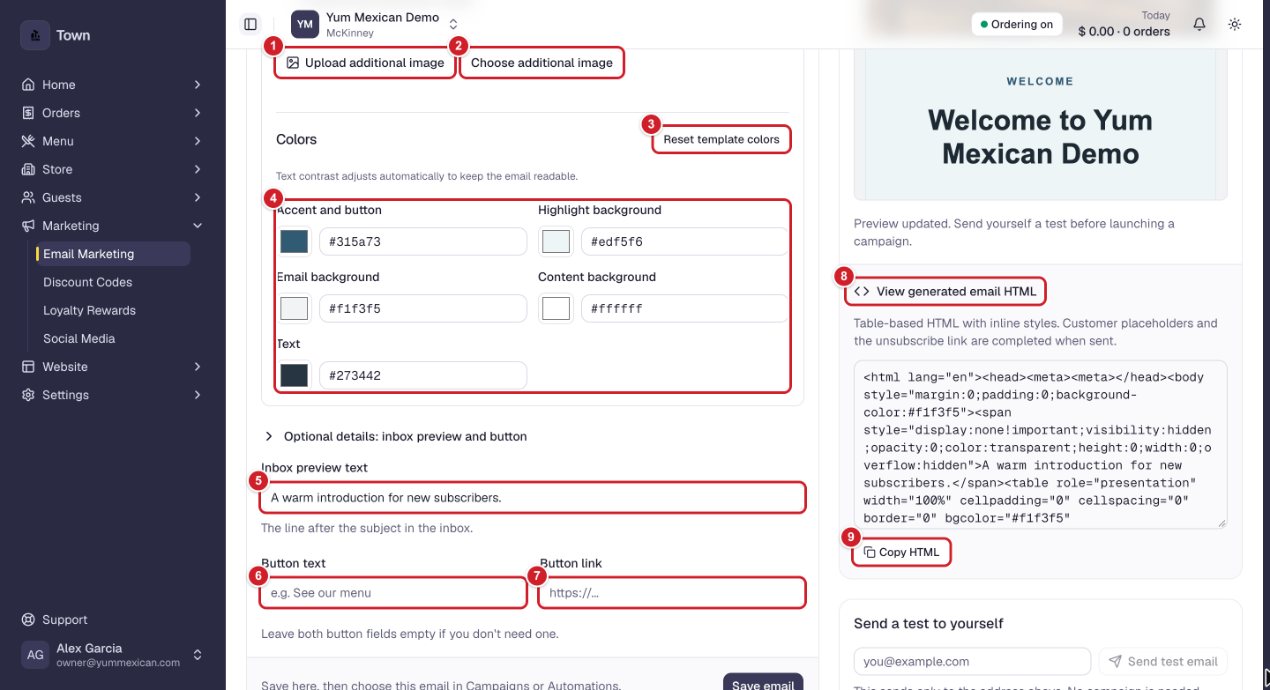
- 1Upload additional image Up to five more pictures, shown below your message.
- 2Choose additional image Reuse a saved picture.
- 3Reset template colors Back to the template’s colors.
- 4Colors Accent and button, Highlight background, Email background, Content background and Text. Text contrast adjusts automatically.
- 5Inbox preview text The line after the subject in the inbox.
- 6Button text Like "See our menu".
- 7Button link Where the button goes. Leave both empty for no button.
- 8View generated email HTML Shows the email’s code.
- 9Copy HTML Copies it.
Tip
Saving creates a new email; your saved emails stay unchanged until you open and edit them.
Still stuck?
Ask Alfredo inside your Town admin, call (469) 249-2795 or email support@town.club. Real people answer 24/7.