
- Help center
- Orders & refunds
- Find and manage orders
Find and manage orders
Search, filter and open any order, then move it from confirmed to completed.
Where to find itOrders › Menu orders
Orders follow the location in the location switcher at the top.
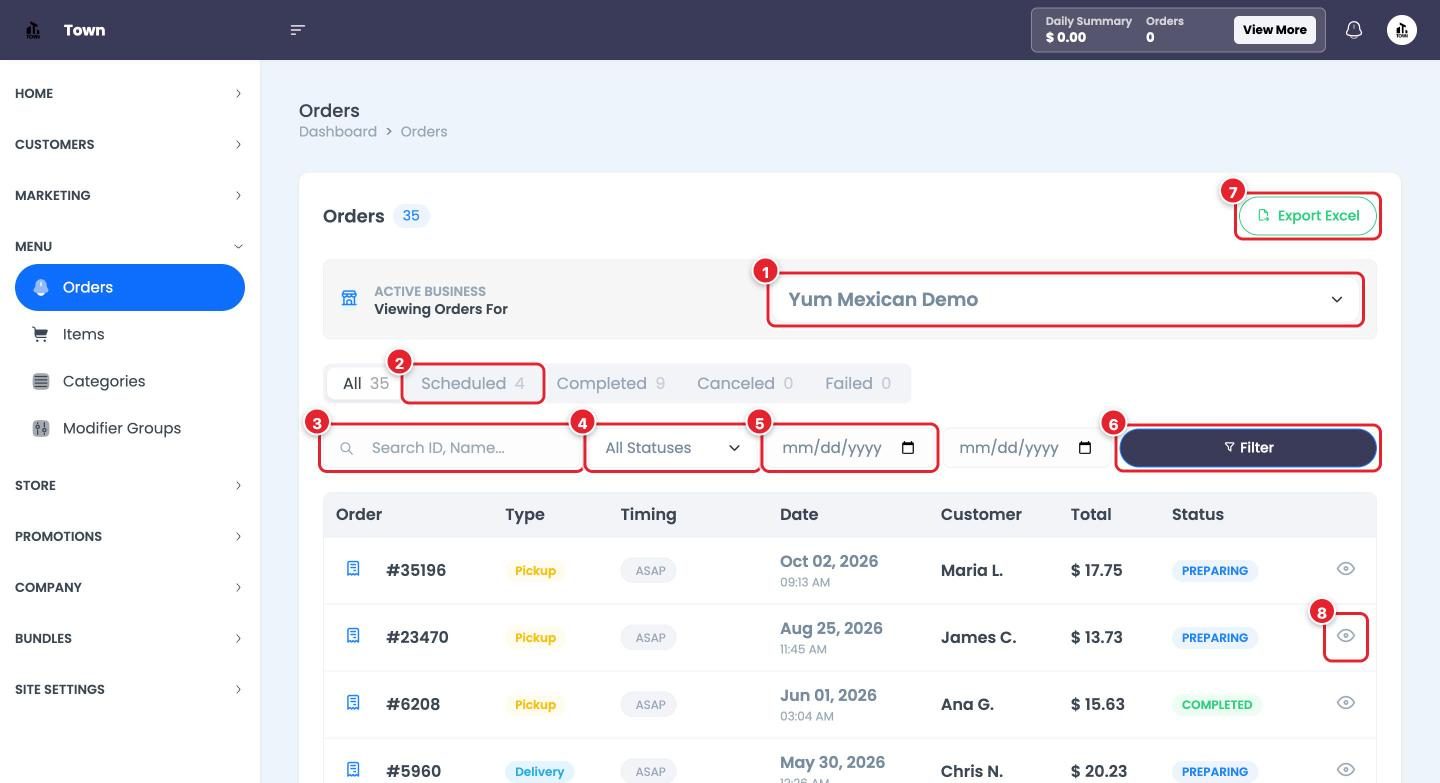
- 1Tabs All, Scheduled, Completed, Canceled and Failed.
- 2Search Search by order number or customer.
- 3All Statuses Show only one status, like Preparing.
- 4Date range The days to show.
- 5Export Excel Downloads what you filtered.
- 6Order number Click to open the order.
- 7Status Where the order is now.
- 8Row menu View Details.
Open an order
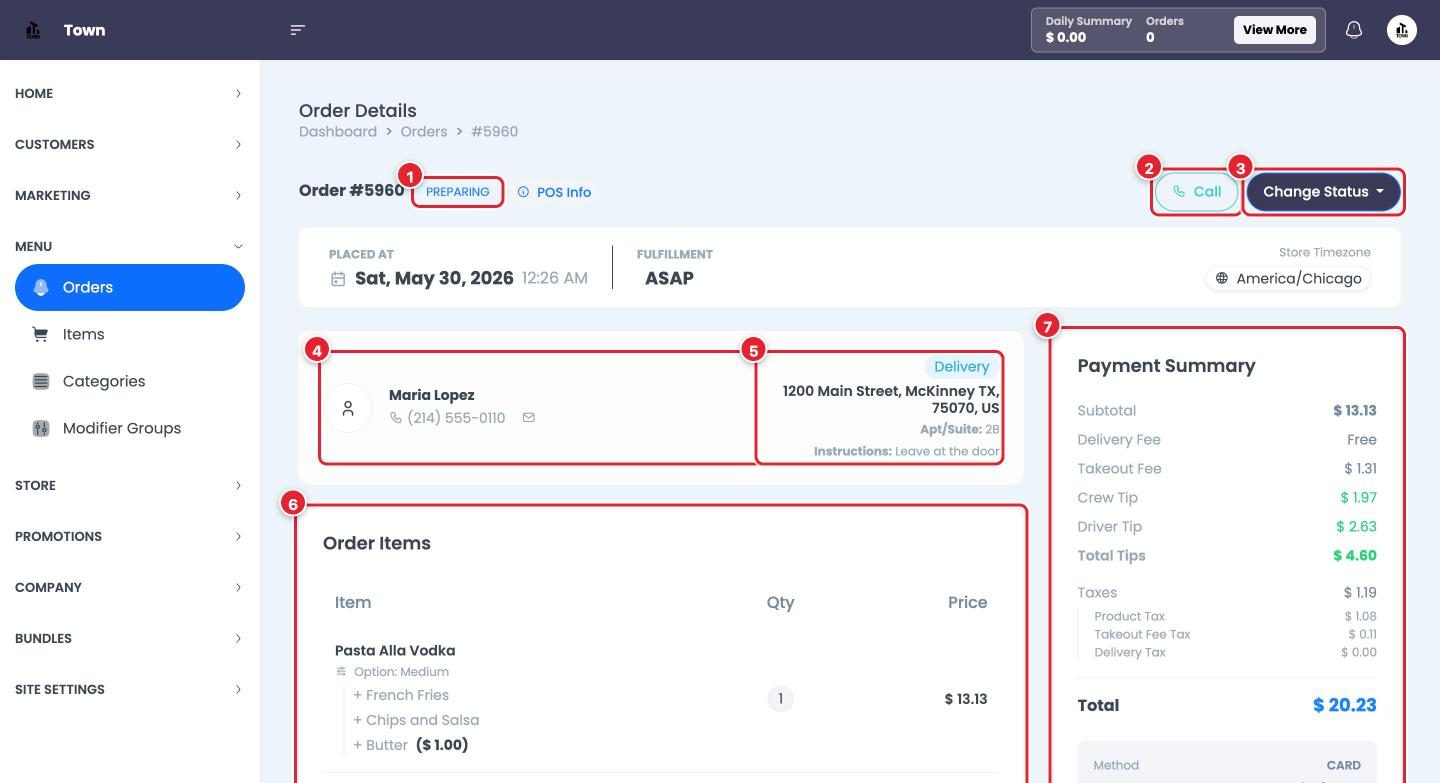
- 1Status Where the order is now, like Preparing.
- 2POS Info How the order went to your POS, its POS IDs, and Re-inject Order to POS to send it again.
- 3Call Phones the customer.
- 4Change Status Moves the order to its next step.
- 5Placed at When it was ordered, and when it is due.
- 6Customer Name, phone, email, and pickup or delivery details.
- 7Order Items Every item with its options and price.
- 8Payment Summary Subtotal, fees, tips, taxes and the total.
- 9Payout Breakdown What you receive after fees.
Move an order along
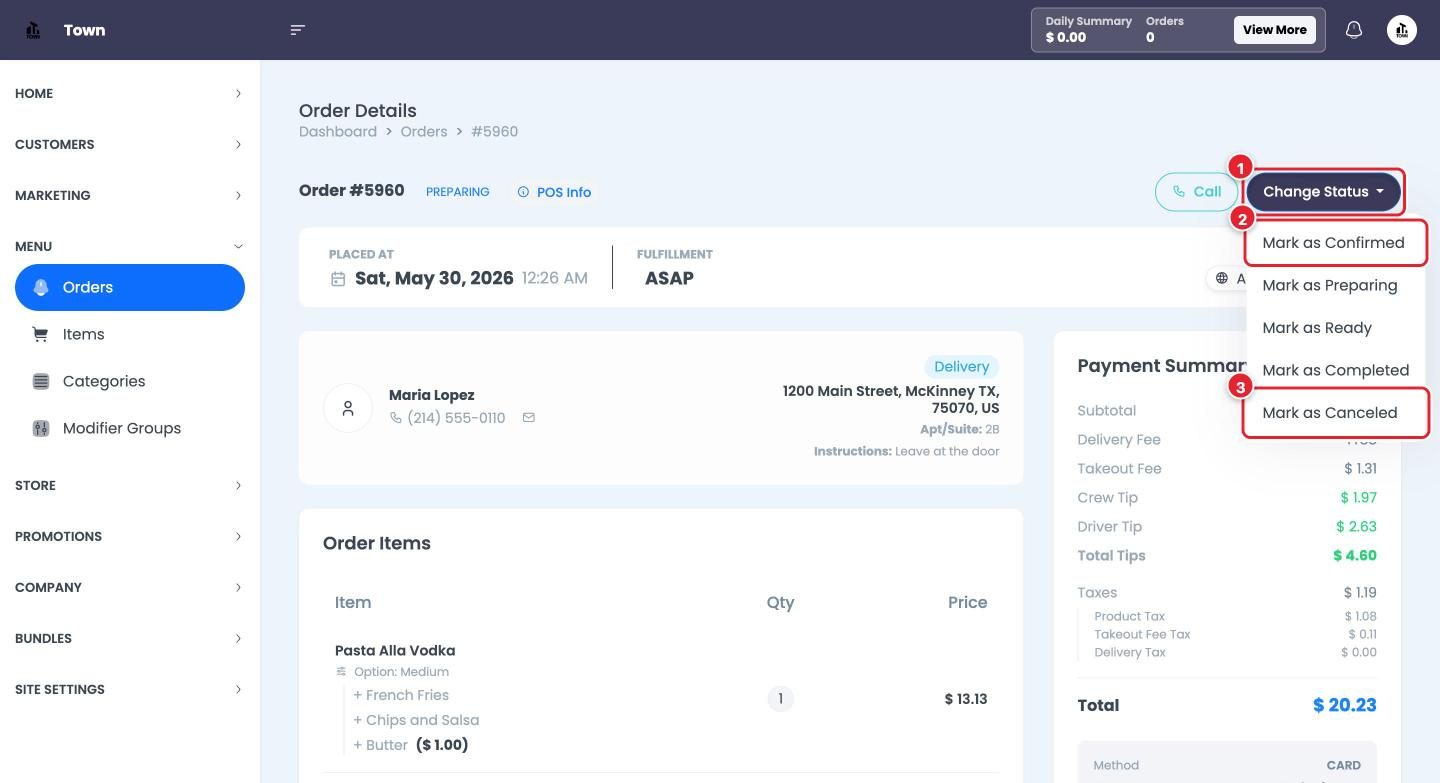
- 1Mark as Confirmed Accepts the order.
- 2Preparing It is being made.
- 3Ready Ready for pickup or for the driver.
- 4Completed Done.
- 5Canceled Stops the order. It does not refund the customer on its own.
Tip
Orders can move through these steps on their own. See Ordering settings.
Track a delivery
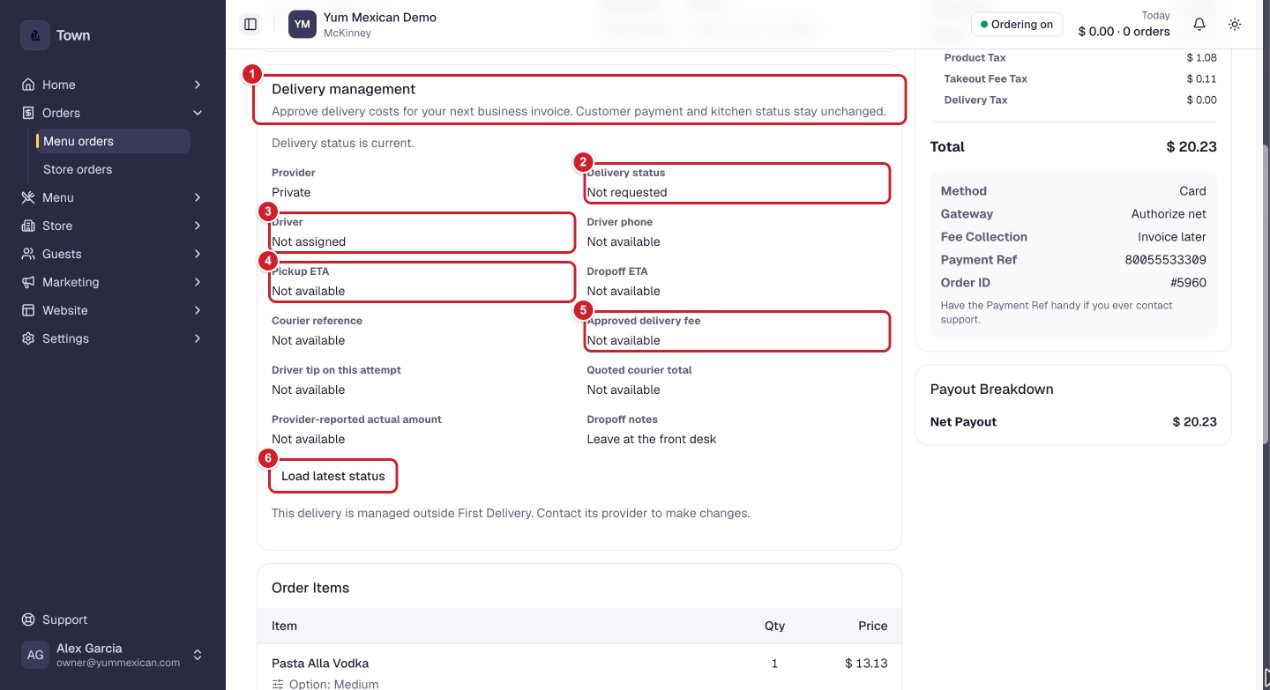
- 1Delivery management The delivery for this order.
- 2Delivery status Where the delivery is now.
- 3Driver Who is delivering it.
- 4Pickup ETA When the driver is expected.
- 5Approved delivery fee The delivery fee for this order.
- 6Load latest status Refreshes the delivery status.
Still stuck?
Ask Alfredo inside your Town admin, call (469) 249-2795 or email support@town.club. Real people answer 24/7.