
- Help center
- Menu
- Add or edit a menu item
Add or edit a menu item
Change an item’s name, price, photo, description, sizes and add-ons.
Where to find itMenu › Menus › Builder › ⋯ on the item › Product Details
To add an item, click + Item on its category in the Builder. To change one, click ⋯ on the item and choose Product Details. Changes save as you type.
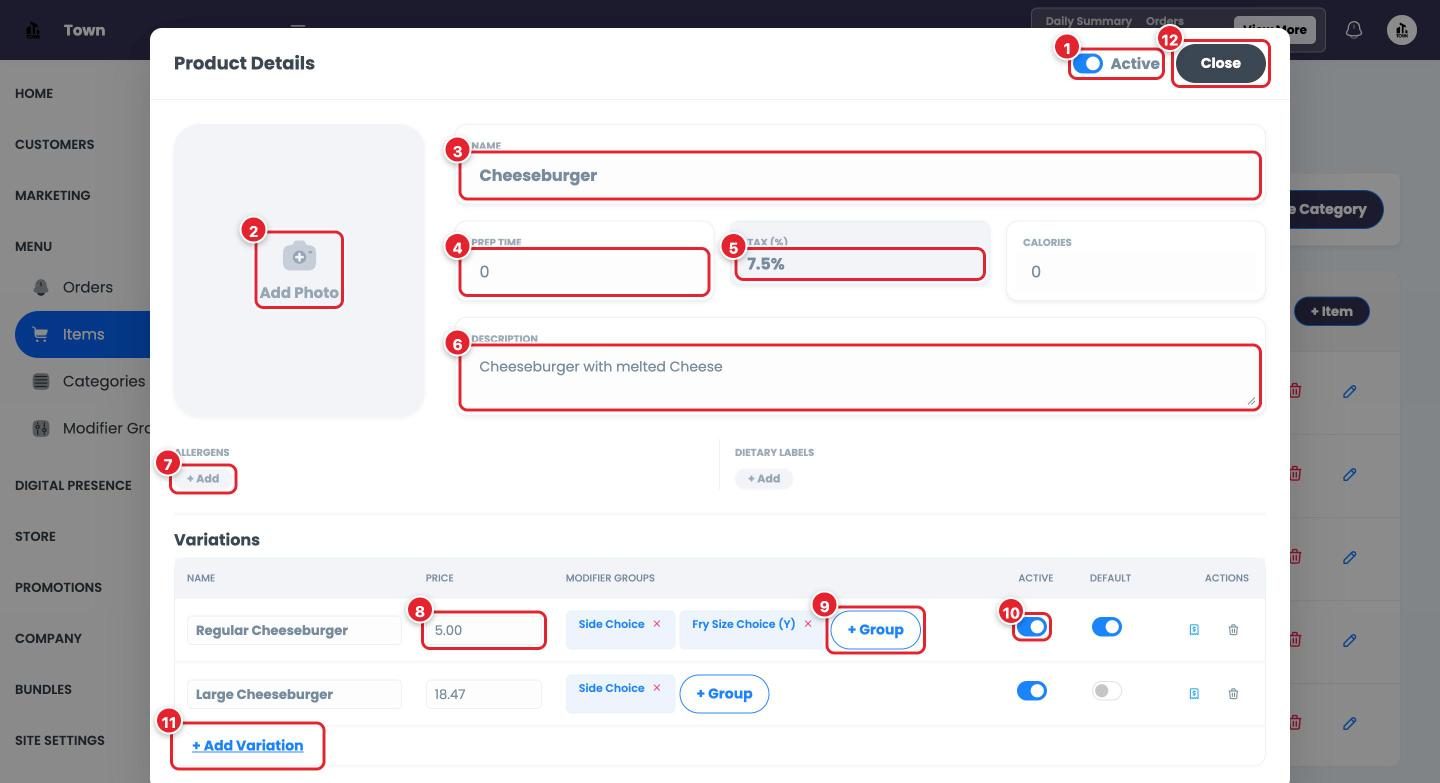
- 1Active On means guests can see and order it. Off hides it right away.
- 2Photo The item’s picture.
- 3Remove Image Takes the picture off.
- 4Name What guests see.
- 5Prep Time Minutes to make it. Leave 0 to use your default prep time.
- 6Tax (%) Read only here. Tax is set in your location’s Commerce settings.
- 7Calories Optional.
- 8Page address (optional) The item’s web address, in lowercase letters, numbers and dashes. Old links keep working if you change it.
- 9Description A line or two that sells it.
Prices, sizes and add-ons
Each item has one or more variations. A variation is a size or version with its own price, like Regular or Large. Modifier groups (choices and add-ons) attach to each variation.
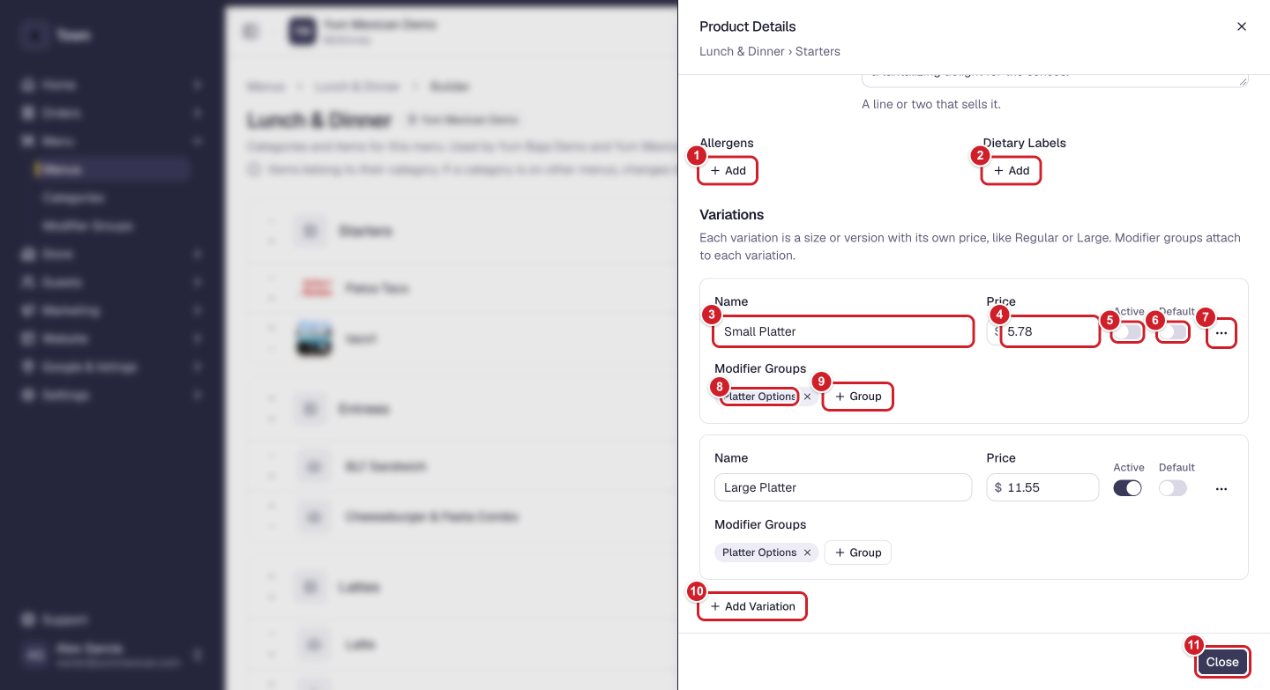
- 1Allergens Add allergens guests should know about.
- 2Dietary Labels Like vegetarian or gluten free.
- 3Variation name Like "Small Platter".
- 4Price The price for this variation.
- 5Active Turn off one size without hiding the whole item.
- 6Default The size that is picked first.
- 7Variation ⋯ More options for this variation.
- 8Modifier group A group attached to this variation. Click × to take it off.
- 9+ Group Attaches a modifier group.
- 10Add Variation Adds another size or version.
- 11Close Closes the window. Your changes are already saved.
Need a new set of choices, like "Choose your salsa"? Build it once in Modifier Groups, then attach it here with + Group.
If your menu comes from your POS, change items and prices in the POS. See Menus connected to your POS.
Ask Alfredo inside your Town admin, call (469) 249-2795 or email support@town.club. Real people answer 24/7.