

- Help center
- Guests
- Look up a customer and send a promo text
Look up a customer and send a promo text
Find any guest by phone, name or email, see their orders and points, and text them a promo code.
Where to find itGuests › Customers
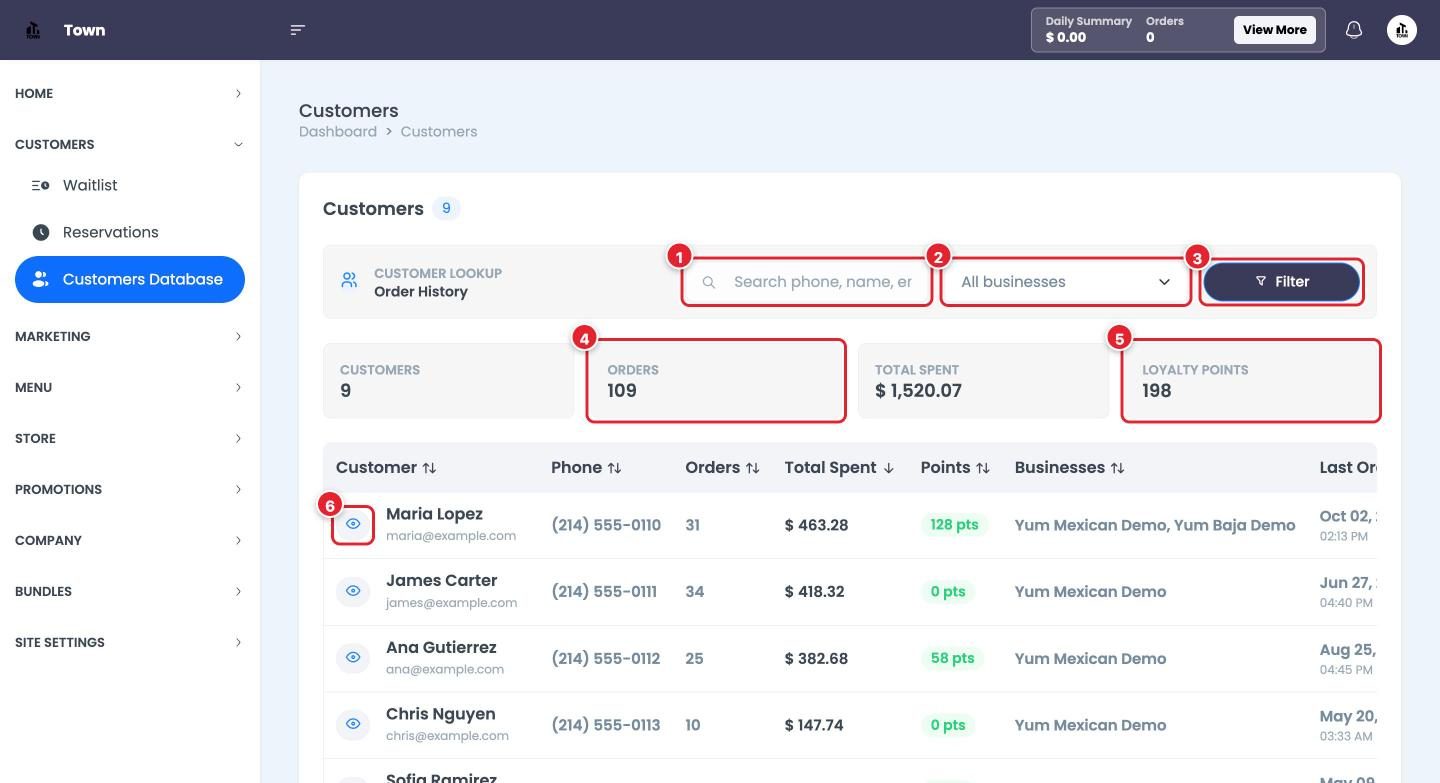
- 1Location One location, or All businesses.
- 2Totals Customers, Orders, Total Spent and Loyalty Points.
- 3Search Search by phone, name or email.
- 4Customer Click the name to open their profile.
- 5Phone Their phone number.
- 6Points Their loyalty points.
- 7Businesses Where they have ordered.
- 8Promo SMS Texts them a promo code.
Click a column title to sort by it, for example Total Spent to find your best guests.
Send a promo text
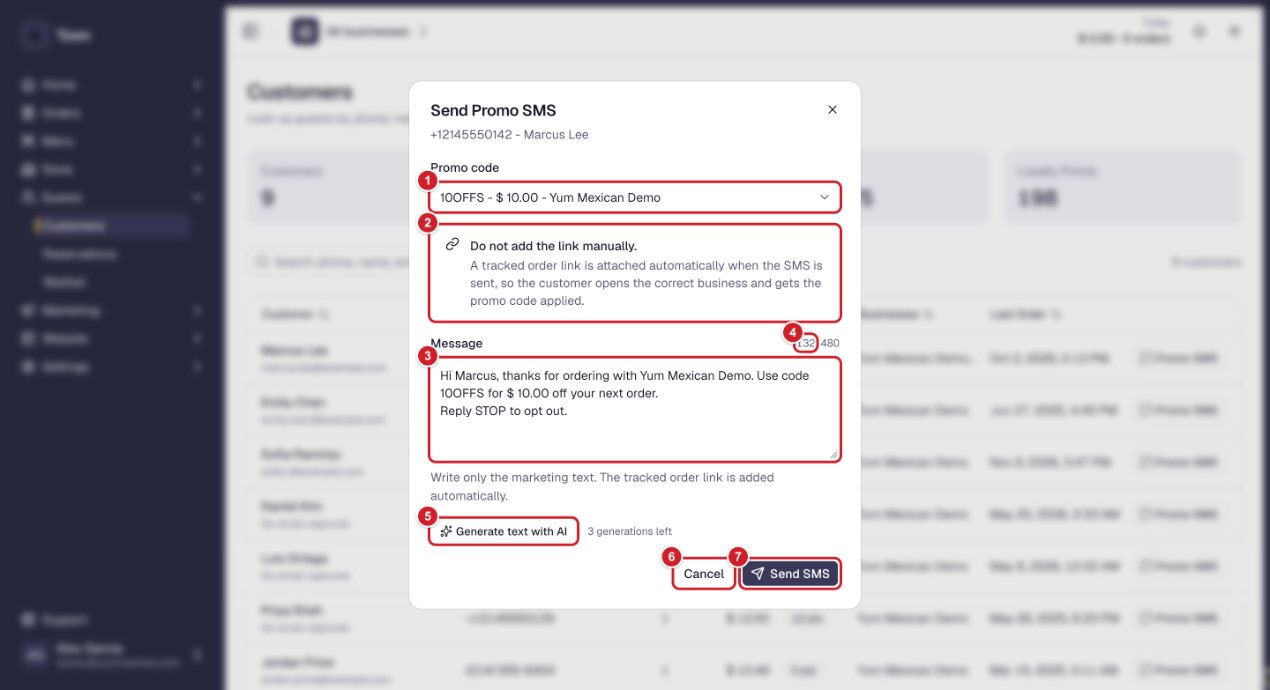
- 1Promo code The discount code to send.
- 2Do not add the link A tracked order link is added automatically, so the guest opens the right location with the code applied.
- 3Message Your marketing text only.
- 4Characters How many characters you have used, out of 480.
- 5Generate text with AI Writes the message for you. You get a few generations.
- 6Cancel Closes without sending.
- 7Send SMS Sends the text.
- Find the guest and click Promo SMS 8 on their row.
- Pick a Promo code.
- Write your message, or click Generate text with AI.
- Click Send SMS.
See how your texts did in Home › Analytics under Recent SMS Promo Links.
Turn promo texts on
Promo SMS shows only for locations with customer SMS marketing turned on.
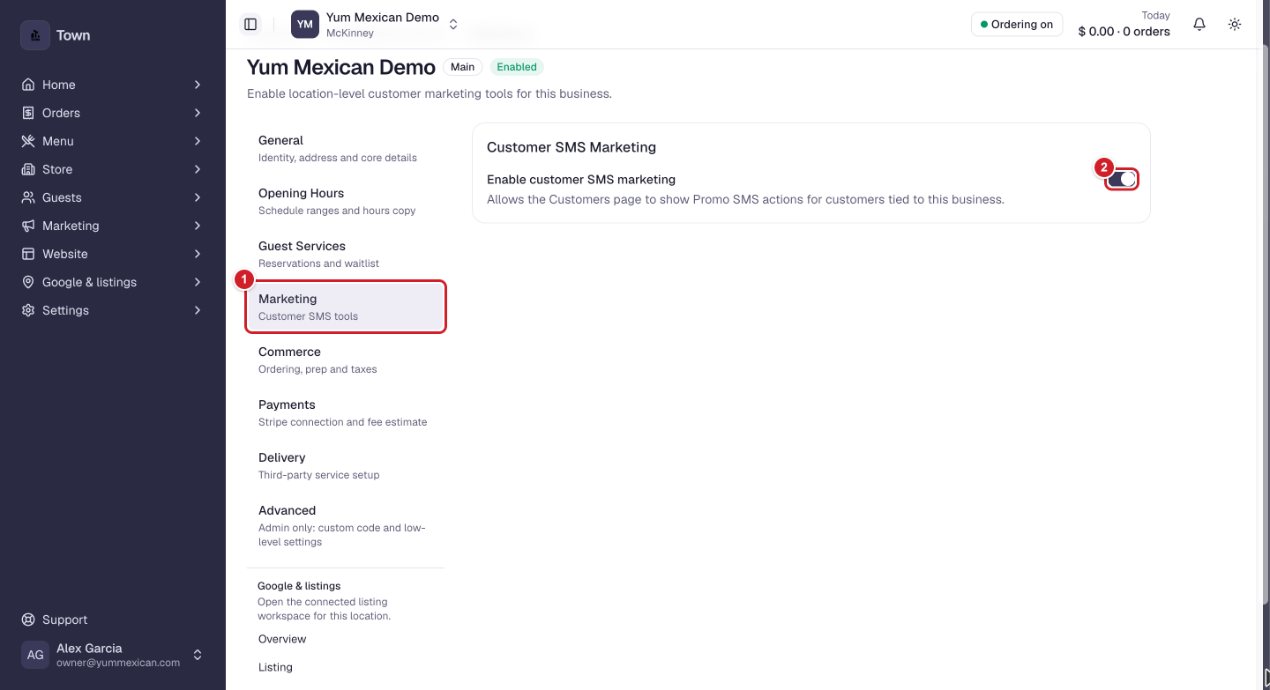
- 1Marketing The Marketing section of the location.
- 2Enable customer SMS marketing Shows Promo SMS on the Customers page for this location’s guests.
Tip
Need a code first? See Create a discount code.
Still stuck?
Ask Alfredo inside your Town admin, call (469) 249-2795 or email support@town.club. Real people answer 24/7.