

- Help center
- Your website
- Add and edit pages
Add and edit pages
Build your own pages, like About Us, Catering or Careers, and choose where they show.
Where to find itWebsite › Pages
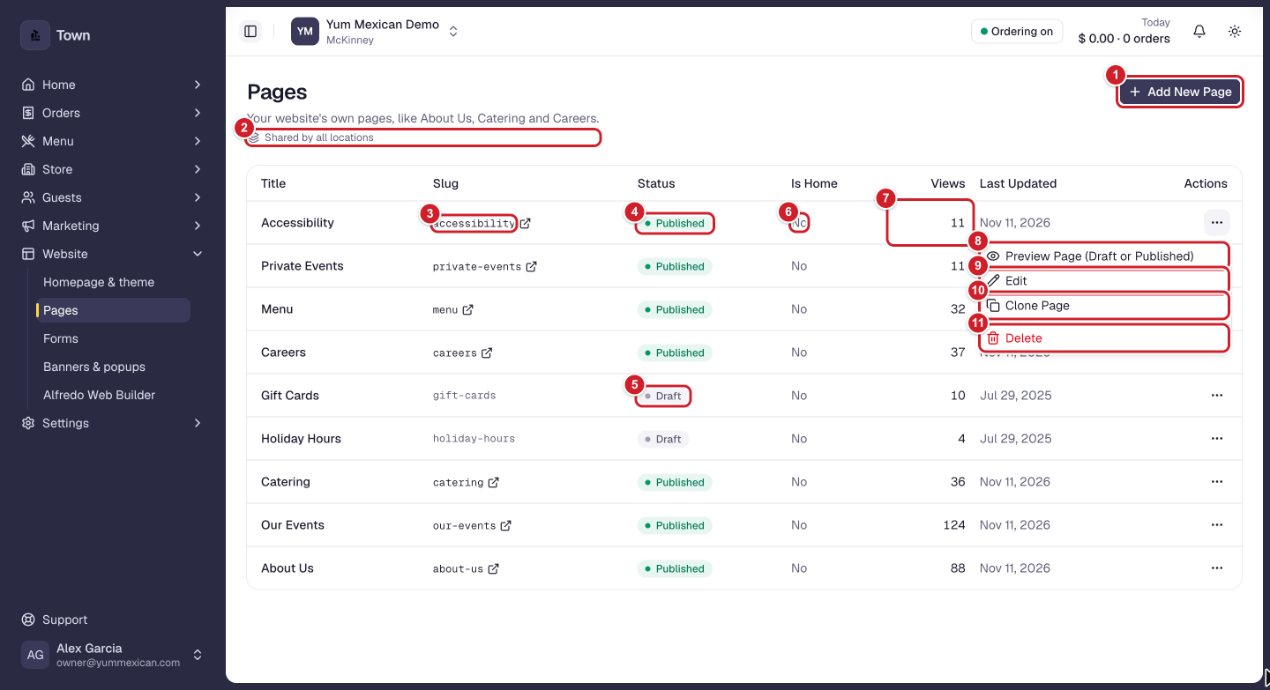
- 1Add New Page Creates a page.
- 2Shared by all locations Pages are the same for your whole site.
- 3Slug The page’s web address. Click to open it.
- 4Published Live on your website.
- 5Draft Saved but not on your website yet.
- 6Is Home Whether this page is your homepage.
- 7Views How many times it has been viewed.
- 8Preview Page Opens a preview, even for a draft.
- 9Edit Opens the page.
- 10Clone Page Makes a copy.
- 11Delete Deletes the page.
Page details
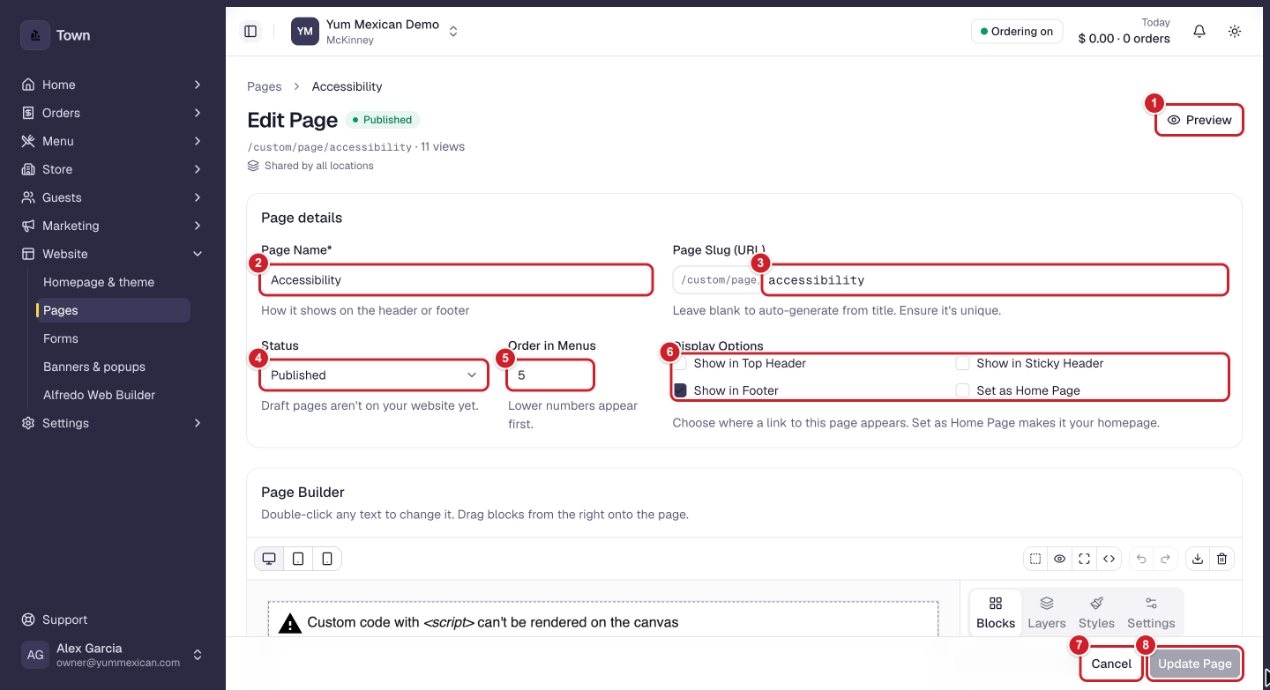
- 1Preview See the page before you update it.
- 2Page Name How it shows in your header or footer.
- 3Page Slug (URL) Leave blank to make one from the name. It has to be unique.
- 4Status Published or Draft.
- 5Order in Menus Lower numbers show first.
- 6Display Options Show in Top Header, Sticky Header or Footer, or Set as Home Page.
- 7Cancel Leaves without saving.
- 8Update Page Saves it.
Page Builder
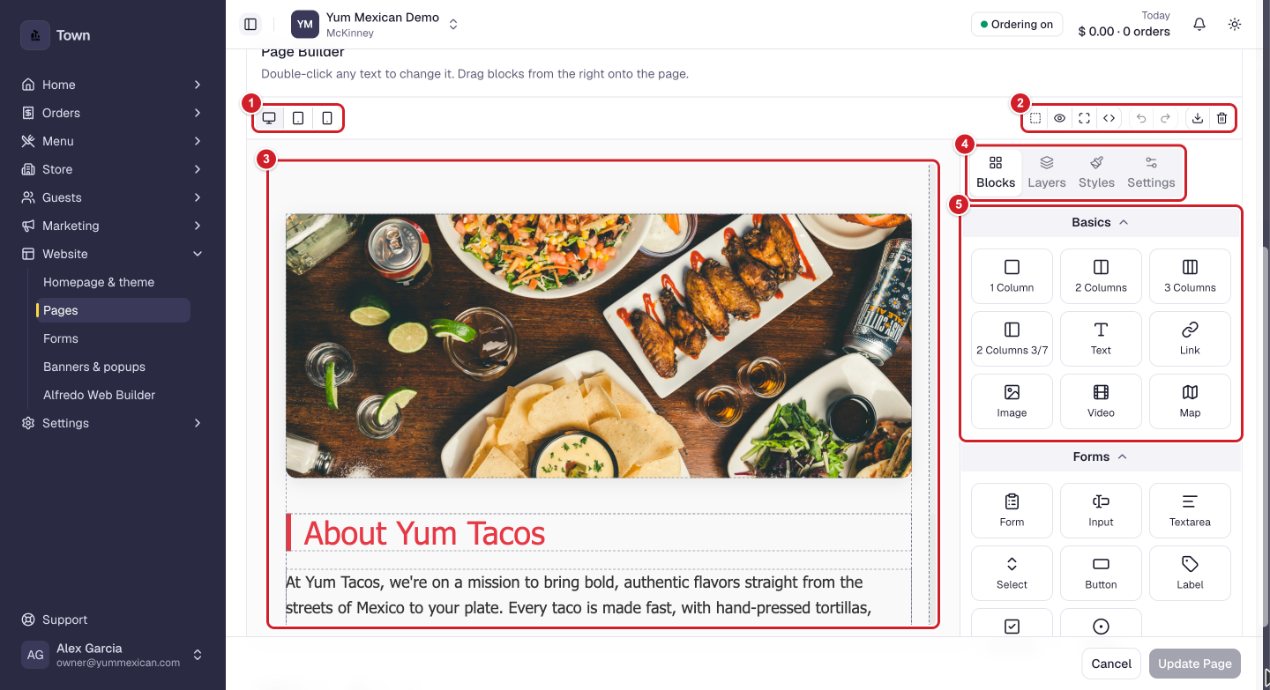
- 1Desktop, Tablet, Mobile Preview the page at each size.
- 2Tools View components, Preview, Fullscreen, View code, Undo, Redo, Import and Clear canvas.
- 3Canvas Your page. Double-click any text to change it.
- 4Panels Blocks, Layers, Styles and Settings.
- 5Blocks Drag a block, like Text, Image, Video, Map or Form, onto the page.
Optional SEO Settings are below the builder. Click Update Page to save.
Tip
To put a form on a page, copy its embed code and paste it into a Custom Code block. See Build a custom form.
Still stuck?
Ask Alfredo inside your Town admin, call (469) 249-2795 or email support@town.club. Real people answer 24/7.