

- Help center
- Team & billing
- Invite your team and set alerts
Invite your team and set alerts
Give managers and staff their own login, and choose who gets which emails.
Where to find itSettings › Staff
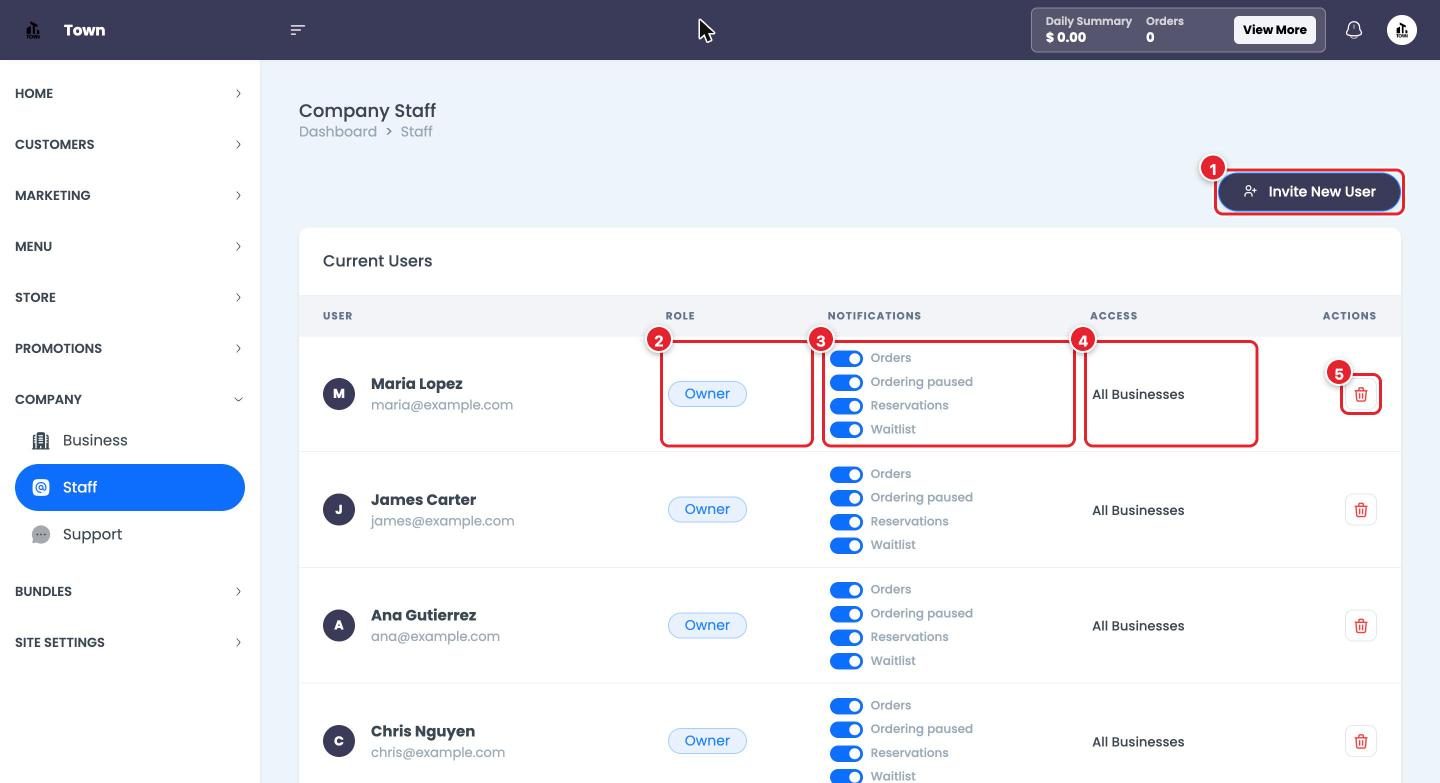
- 1Invite New User Invites someone by email.
- 2User Name and email.
- 3Role Owner, Manager or Employee.
- 4Notifications Email alerts for Orders, Ordering paused, Reservations and Waitlist. Flip a switch to change it for that person.
- 5Access All Businesses, or one location.
- 6Trash Removes the user.
Invite someone
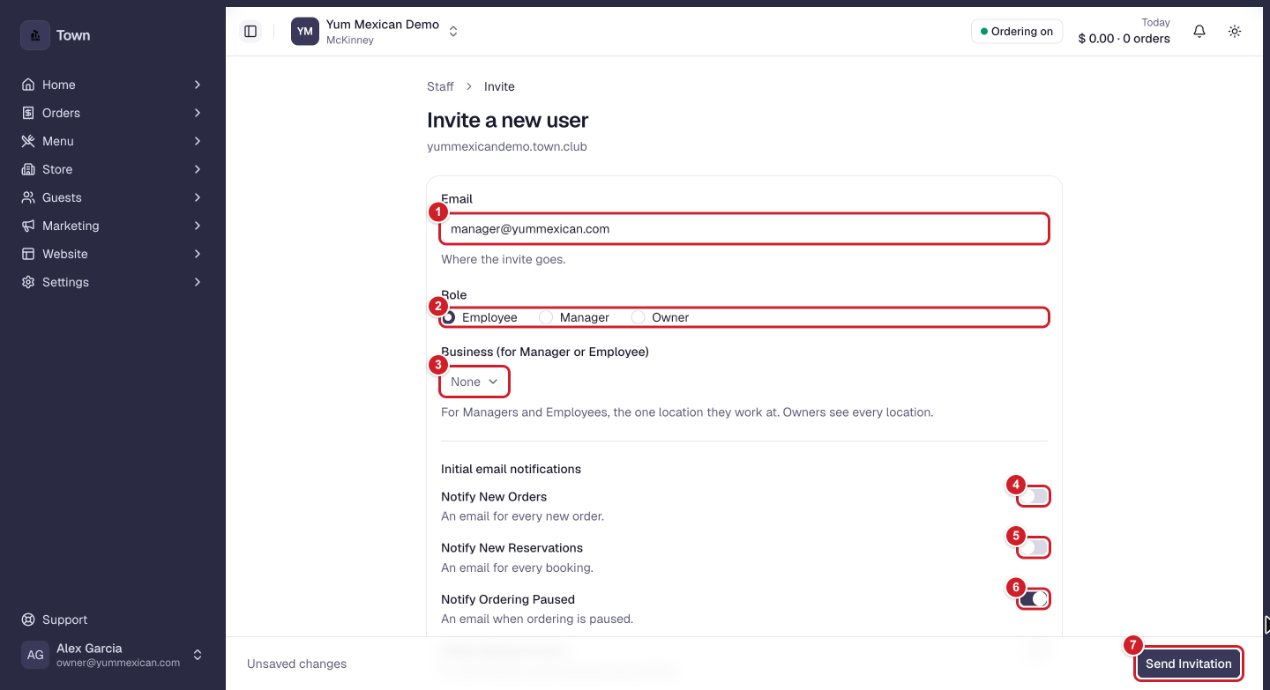
- 1Email Where the invite goes.
- 2Role Employee, Manager or Owner.
- 3Business For Managers and Employees, the one location they work at. Owners see every location.
- 4Notify New Orders An email for every new order.
- 5Notify New Reservations An email for every booking.
- 6Notify Ordering Paused An email when ordering is paused. Notify Waitlist Entries is just below.
- 7Send Invitation Sends the invite.
- Go to Settings › Staff and click Invite New User.
- Type their email and pick a role.
- For a Manager or Employee, pick their location.
- Choose their email alerts and click Send Invitation.
Still stuck?
Ask Alfredo inside your Town admin, call (469) 249-2795 or email support@town.club. Real people answer 24/7.