
- Help center
- Menu
- Categories and category hours
Categories and category hours
Your category library, and how to show a category only at certain times.
Where to find itMenu › Categories
Categories are the sections of your menu, like Appetizers or Burritos & Bowls. They live in one library that all your menus share. Add them to a menu and set their order in its Builder.
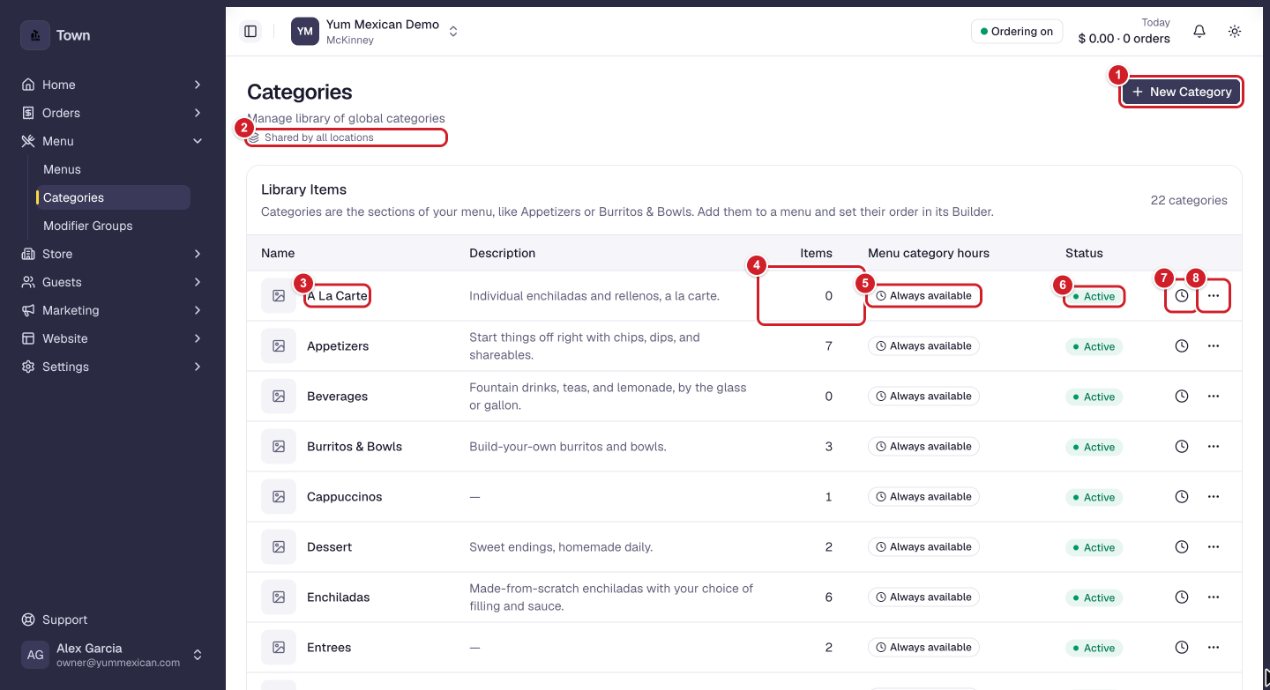
- 1New Category Makes a new category.
- 2Shared by all locations The library is the same for every location.
- 3Name The category.
- 4Items How many items it has.
- 5Menu category hours Always available, or its custom hours.
- 6Status Active or Inactive.
- 7Clock Edit category hours.
- 8Row menu Edit or Delete.
Category hours
Show a category only during certain times, like Breakfast until 11 AM. Click the clock 7 on its row.
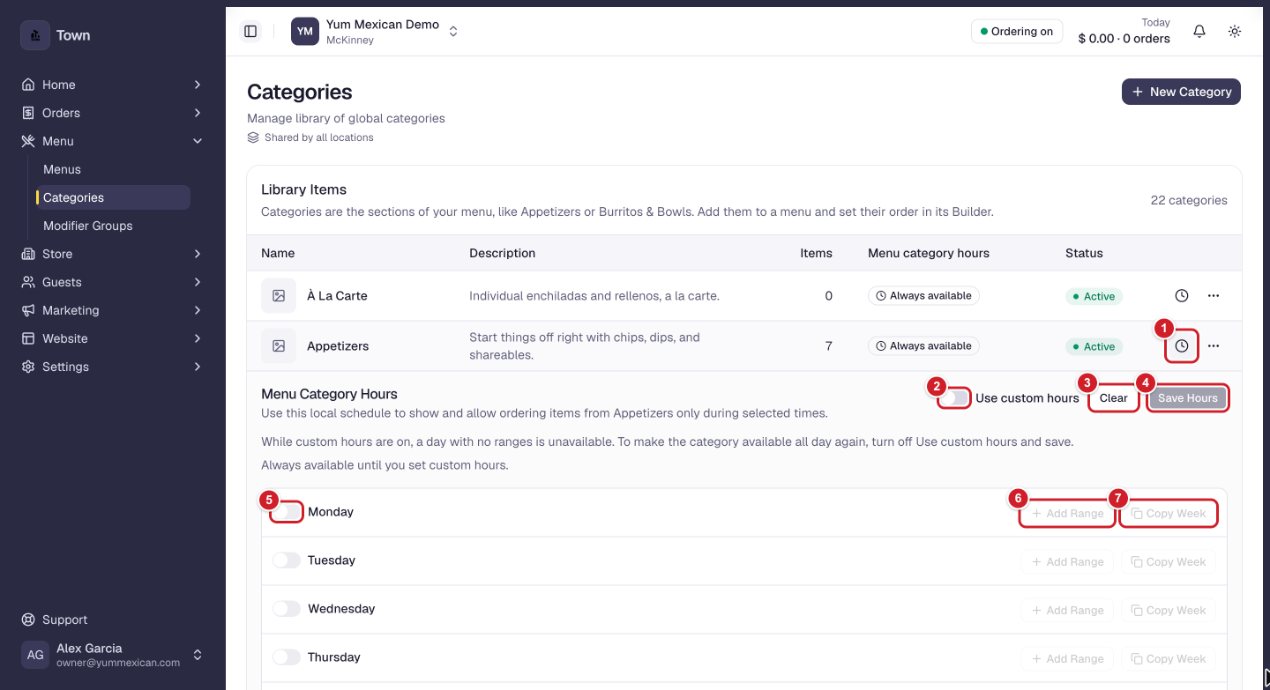
- 1Clock Opens the hours for this category.
- 2Use custom hours Turn on to use the schedule below.
- 3Clear Clears the schedule.
- 4Save Hours Saves it.
- 5Day switch Turn on each day it is available.
- 6Add Range Adds a time range for that day.
- 7Copy Week Copies that day’s hours to the rest of the week.
Good to know
While custom hours are on, a day with no time ranges is unavailable. To make the category available all day again, turn off Use custom hours and click Save Hours.
Still stuck?
Ask Alfredo inside your Town admin, call (469) 249-2795 or email support@town.club. Real people answer 24/7.