
- Help center
- Your website
- Add a banner or popup to your website
Add a banner or popup to your website
Announce a special, a closure or a promo code at the top of your site or in a popup.
Where to find itWebsite › Banners & popups
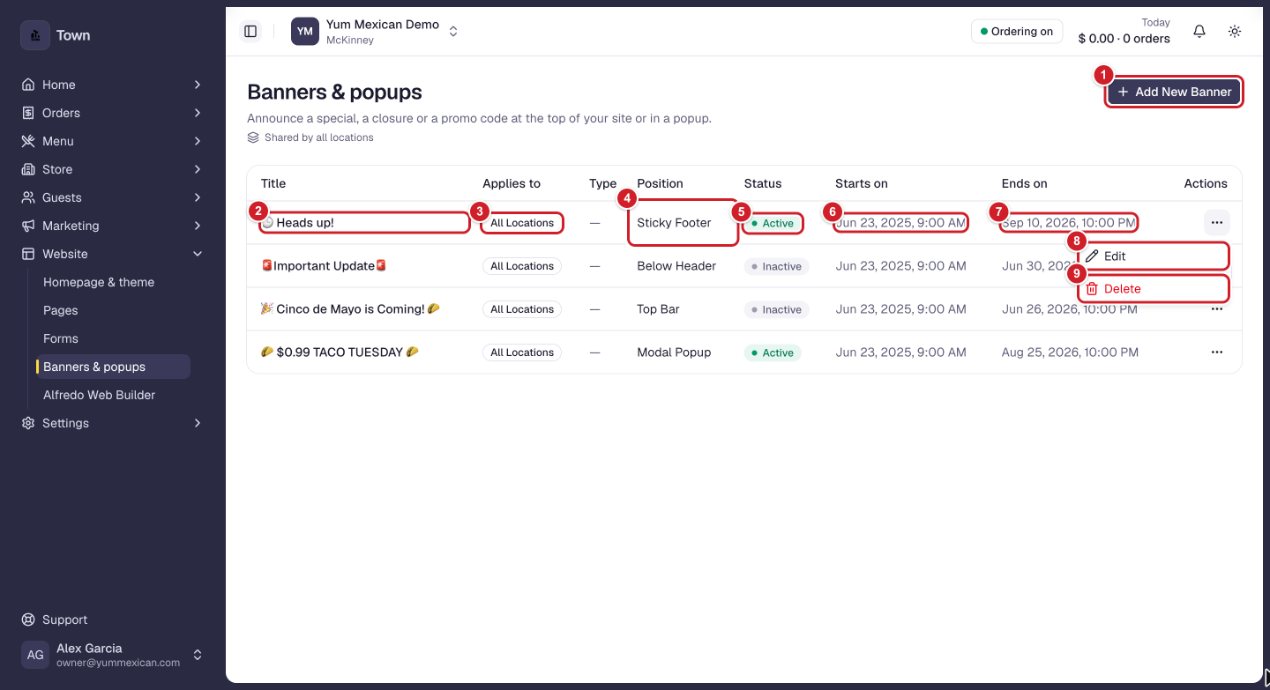
- 1Add New Banner Creates a banner.
- 2Title The banner.
- 3Applies to All Locations, or one location.
- 4Position Top Bar, Below Header, Modal Popup or Sticky Footer.
- 5Status Active or Inactive.
- 6Starts on When it starts showing.
- 7Ends on When it stops.
- 8Edit Opens it.
- 9Delete Deletes it.
Create or edit a banner
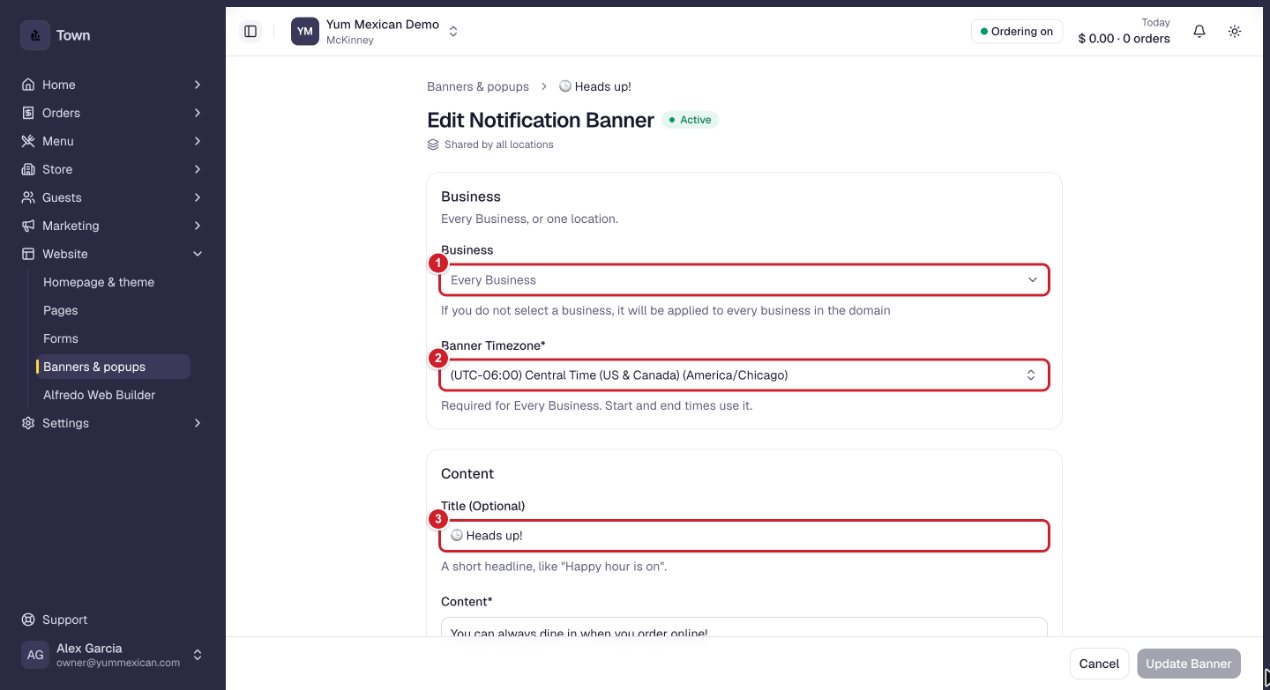
- 1Business Every Business, or one location.
- 2Banner Timezone Required for Every Business. Start and end times use it.
- 3Title (Optional) A short headline, like "Happy hour is on". The message itself goes in Content, just below.
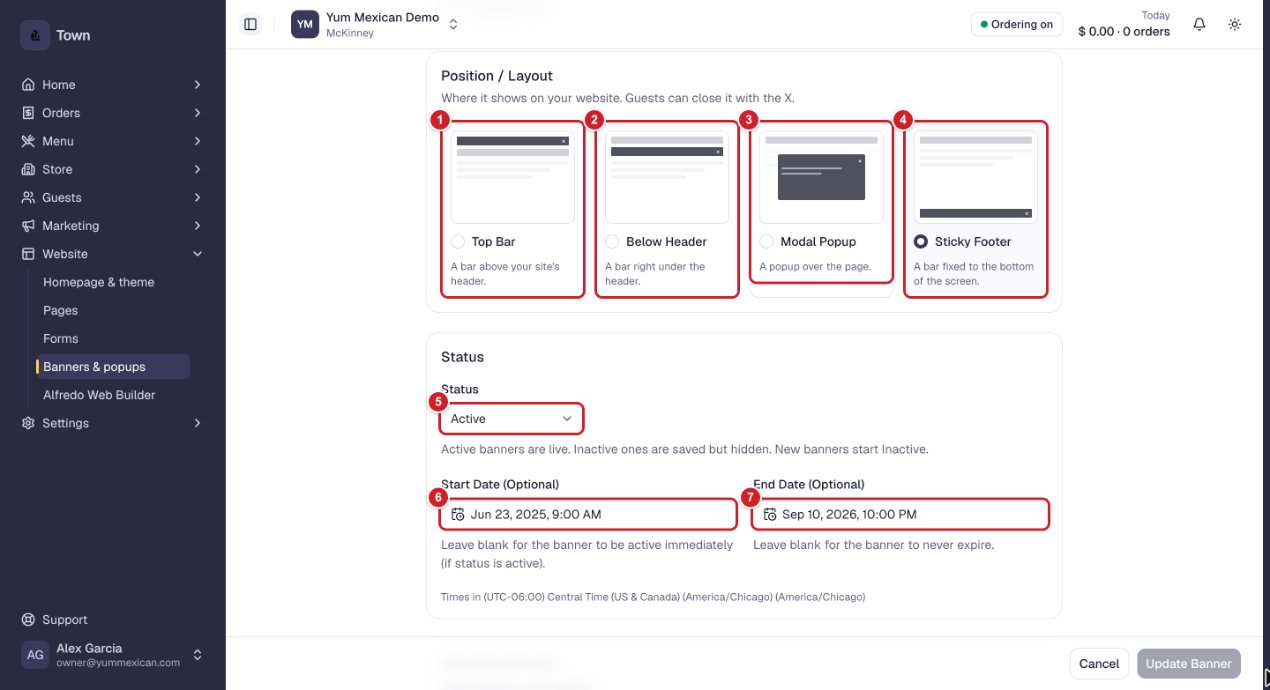
- 1Top Bar A bar above your header.
- 2Below Header A bar right under the header.
- 3Modal Popup A popup over the page.
- 4Sticky Footer A bar fixed to the bottom of the screen.
- 5Status Active banners are live. New banners start Inactive.
- 6Start Date (Optional) Leave blank to start right away.
- 7End Date (Optional) Leave blank to never expire.
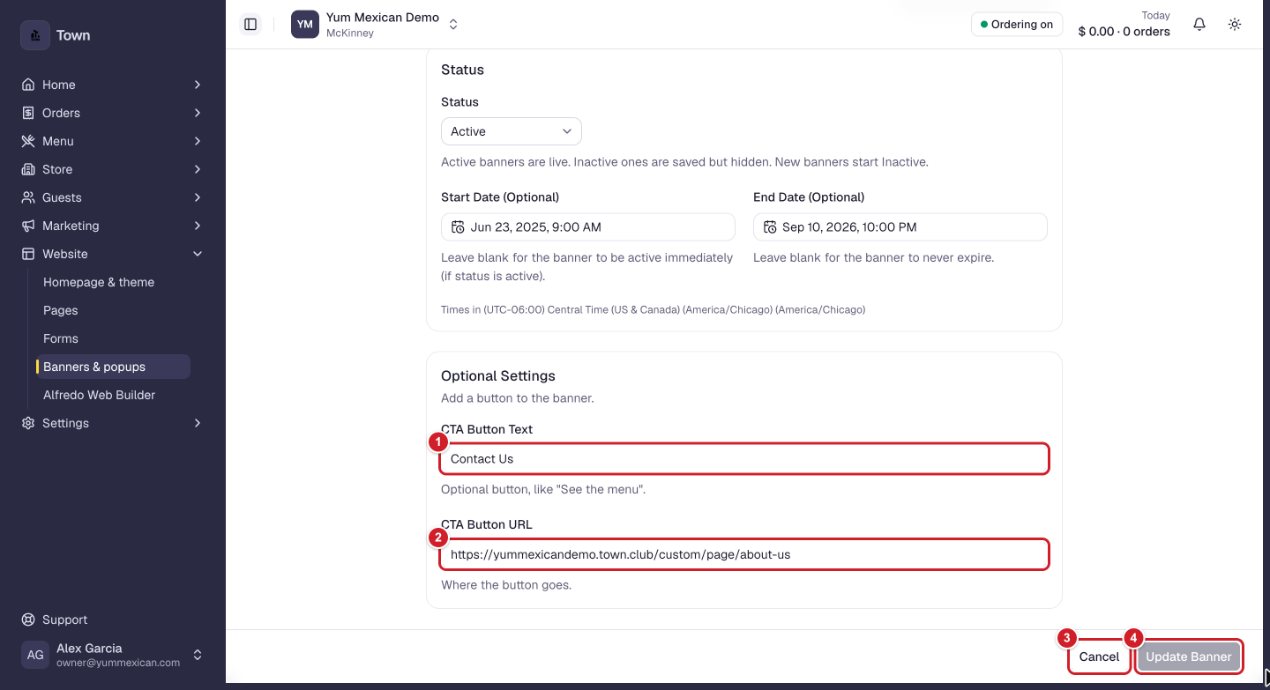
- 1CTA Button Text Like "See the menu".
- 2CTA Button URL Where the button goes.
- 3Cancel Leaves without saving.
- 4Update Banner Saves it.
Guests can close a banner with its ×.
Still stuck?
Ask Alfredo inside your Town admin, call (469) 249-2795 or email support@town.club. Real people answer 24/7.