

- Help center
- Locations & settings
- Pause online ordering
Pause online ordering
Stop taking online orders until a time you choose, then resume.
Pausing stops online orders until the date and time you pick. Ordering turns back on by itself at that time.
From the top bar
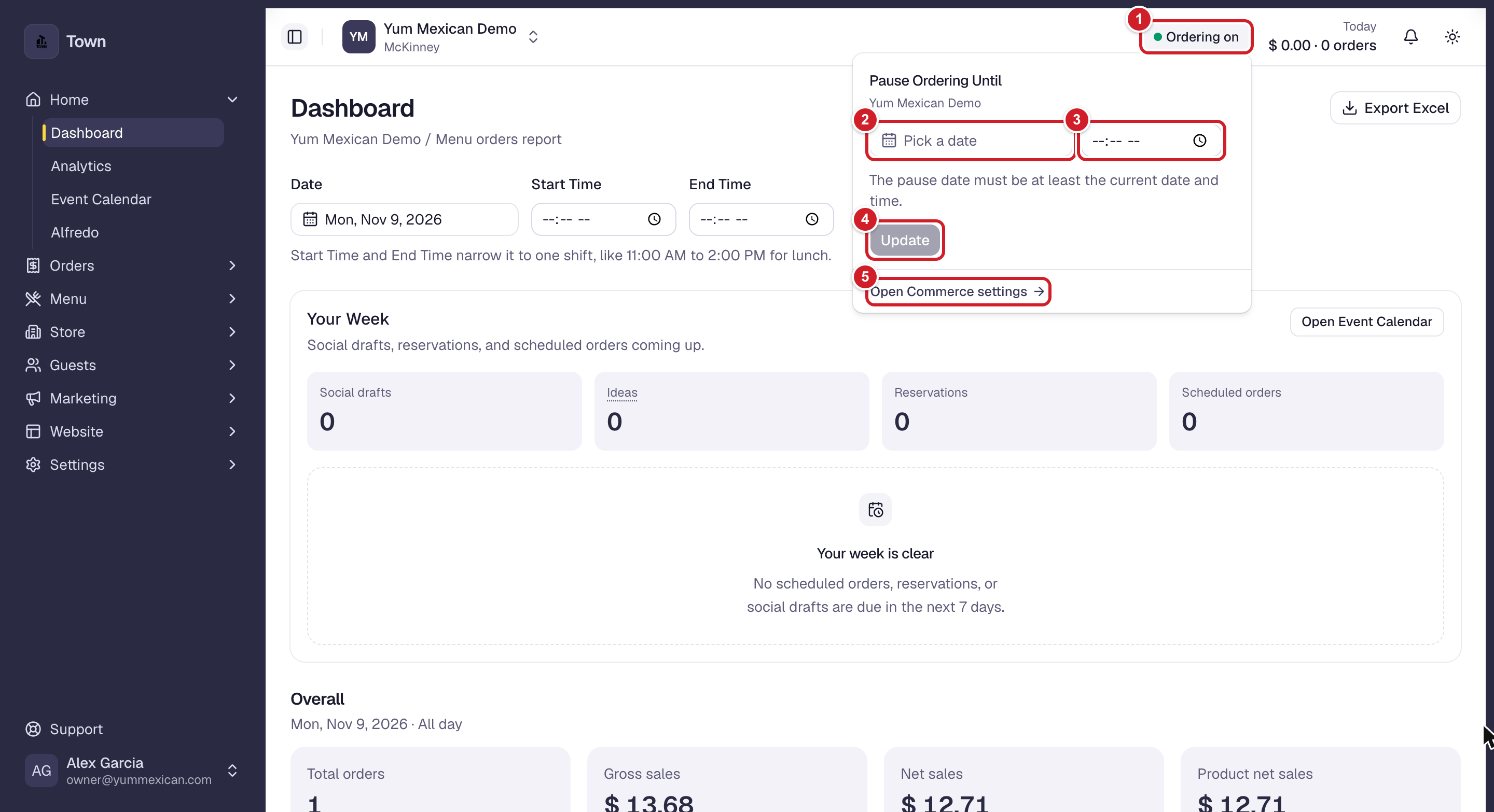
- 1Ordering on Opens the pause settings.
- 2Pick a date When ordering should turn back on.
- 3Time The time on that date.
- 4Update Starts the pause.
- 5Open Commerce settings Opens the full ordering settings.
While ordering is paused, a Resume Ordering button appears so you can turn it back on early.
From the location’s settings
Where to find itSettings › Locations › ⋯ Edit › Commerce
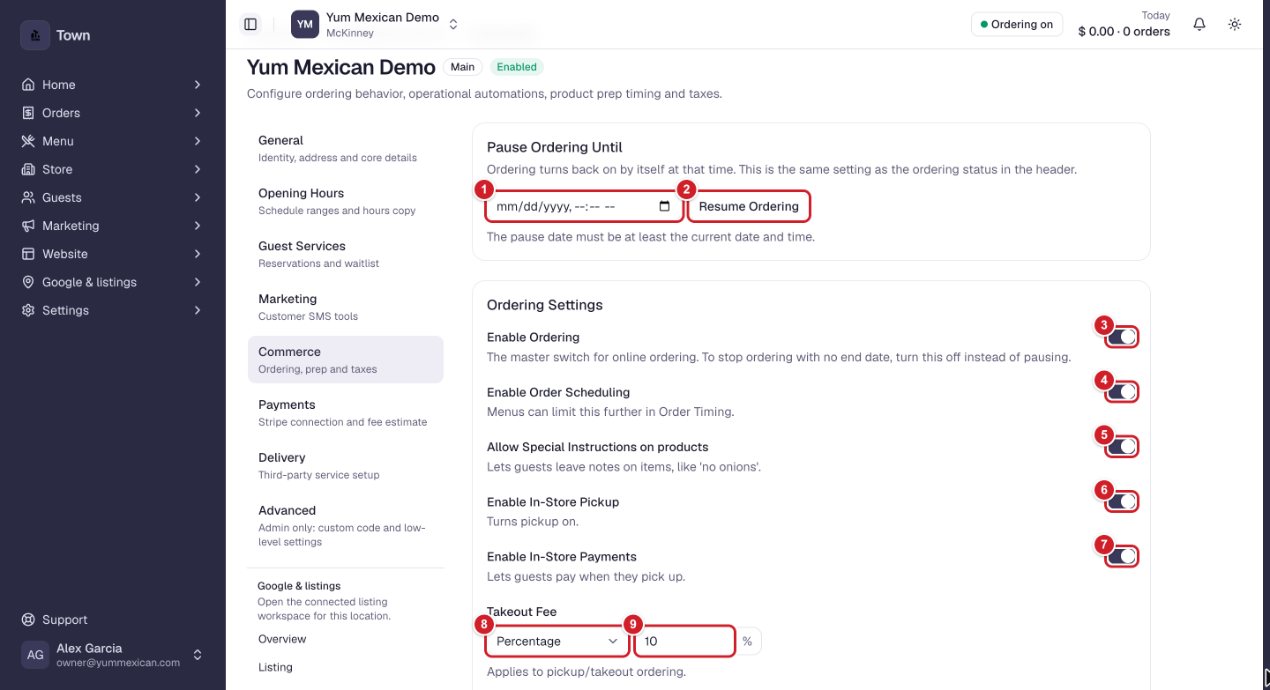
- 1Pause Ordering Until The date and time ordering turns back on.
- 2Resume Ordering Turns ordering back on now.
- 3Enable Ordering To stop ordering with no end date, turn this off instead of pausing.
Tip
You can also ask Alfredo: "Pause online ordering for 1 hour." See Alfredo.
To get an email whenever ordering is paused, see Invite your team and set alerts.
Still stuck?
Ask Alfredo inside your Town admin, call (469) 249-2795 or email support@town.club. Real people answer 24/7.